How to Remove Hyperlinks from a PDF (2026 Guide)
To remove hyperlinks from a PDF, upload it to the PDFCourt Link Manager, tick the links you want gone (or choose to remove all of them), confirm, and download the cleaned copy. The linked text stays on the page. Only the clickable link is removed.
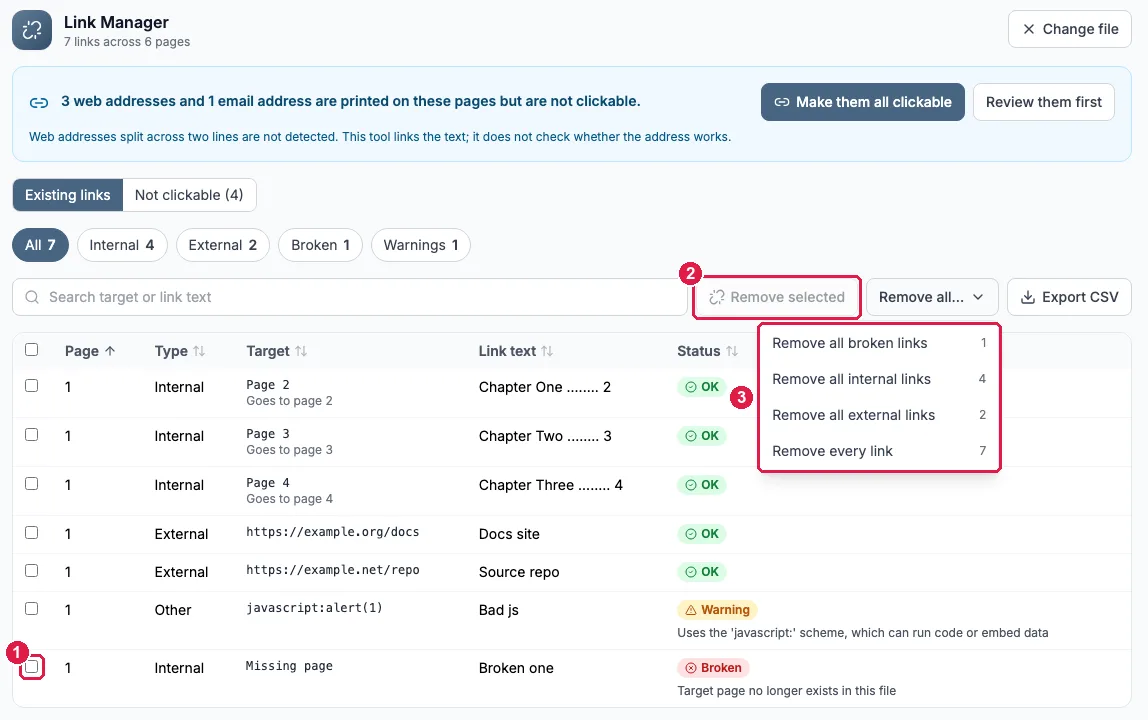
Step by step: remove links with the Link Manager
You can use the tool without creating an account. The whole job takes a couple of minutes.
Upload your PDF
Open the Link Manager and drop in your file. The scan starts by itself, with no button to press. A few seconds later you see a table with one row per link: its page, type (internal, external, email, file or other), target, the text it sits on, and a status.
Review the list
The filter chips above the table (All, Internal, External, Broken, Warnings) narrow it down. The search box matches both the link target and the link text, so typing part of a web address finds every link to that site.
Choose what to remove
You have two ways to pick:
- Remove selected. Tick the checkbox on each row you want gone, then click Remove selected. This is how you remove one link.
- Remove all. Open the menu and pick Remove all broken links, Remove all internal links, Remove all external links or Remove every link. Each entry shows how many links it covers.
Confirm
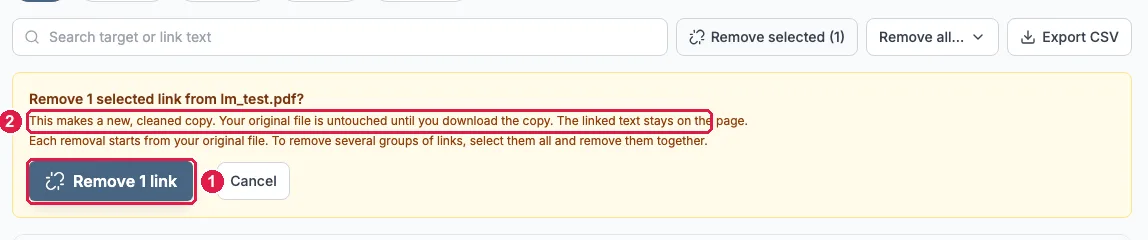
A yellow summary box tells you what is about to happen. Nothing is changed until you click the Remove button in it. Cancel closes the box and leaves everything as it was.
Download the cleaned PDF
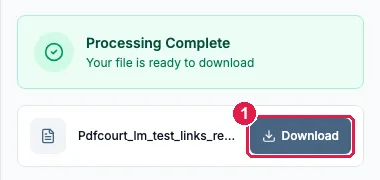
When processing finishes, a side panel shows Processing Complete with a Download button. Uploaded files are deleted from our servers automatically, so download the result before you close the page. The table behind the panel keeps showing the links of the original file. That is expected.
Which option removes what
| You want to | Use |
|---|---|
| Remove one link | Tick its row, then Remove selected |
| Remove a few specific links | Tick each row, then Remove selected |
| Clean up links that point to missing pages | Remove all, then Remove all broken links |
| Keep web links but drop table of contents and cross-reference links | Remove all, then Remove all internal links |
| Keep page jumps but drop outside web links | Remove all, then Remove all external links |
| Strip every link | Remove all, then Remove every link |
Want to remove two groups, such as broken links and external links? Tick them all in the table and use Remove selected once. Each removal starts from your original file, so running two separate removals does not stack.
What stays and what goes
Stays
- The text the link was attached to.
- Printed web addresses and email addresses (they just stop being clickable).
- Coloured boxes drawn by the Jump Links tool. They are part of the page content, so only their link is removed, not the box.
- Your original file, which is never modified.
Goes
- The clickable link area on top of the text, for each link you chose.
We checked this on a six-page test file with seven links. After using Remove every link, the downloaded PDF contained zero links and the six drawn boxes on page one were still there.
If you later want some links back, add new ones with the Jump Links tool. If text in your PDF looks like a link but is not clickable, see our guide to making printed web addresses clickable.
Signed PDFs
Removing links from a digitally signed PDF changes the file, so the signature stops being valid. Remove the links first and apply the signature to the cleaned copy.
Frequently Asked Questions
How do I remove all hyperlinks from a PDF?
Upload the PDF to the Link Manager, open the Remove all menu and choose Remove every link, confirm, and download the cleaned copy. The text that was linked stays on the page; only the clickable link is removed.
How do I remove just one link from a PDF?
Find the link in the list (the search box matches both the target and the link text), tick its checkbox and click Remove selected. Confirm, then download the cleaned copy.
Does removing a hyperlink delete the text?
No. The words stay on the page exactly as they were. Only the clickable area on top of them is removed.
Will removing links change my original file?
No. Removal produces a new, cleaned PDF for you to download, and your original file is untouched. Each removal starts from your original file, so to remove several groups of links, select them all and remove them together.
Can I remove links from a digitally signed PDF?
You can, but it changes the file, which invalidates the digital signature. If the document needs a signature, remove the links first and sign afterwards.
Can I change where a link points instead of removing it?
The Link Manager lists and removes links. To replace one, remove it here, then add a new link with the Jump Links tool, which lets you draw a box on the page and choose the destination page or web address.
Related Guides
How to Find and Fix Broken Links in a PDF →
What the link checker can verify, and what it cannot
Extract PDF Links to CSV and Make URLs Clickable →
Export every link to a spreadsheet
How to Create PDF Jump Links →
Add new links after cleaning up the old ones
How to Remove Metadata from a PDF →
Clean the hidden fields before you share the file