How to Find and Fix Broken Links in a PDF
Upload the PDF to the PDFCourt Link Manager and it checks every link for you. It catches internal links that point to a page that no longer exists, malformed or empty addresses, and risky link types. One limit you should know up front: it never visits outside websites, so it cannot tell you whether an external page is still online.
What the checker does and does not check
It checks
- Internal links: does the target page exist in this file?
- Web addresses: is there a scheme and a host, with no stray spaces?
- Email links: is the mailto link empty?
- Risky schemes: javascript:, data: and vbscript:.
- Plain http links.
- Link boxes with zero size or placed off the page.
- Launch actions, absolute file: paths, and links with no action at all.
It does not check
- Whether an external website is online. Nothing outside your file is ever opened.
- Whether a web page still contains what the link text promises.
- Whether an email address is real. Only an empty mailto link is flagged.
- Whether an internal link points to the page you meant, only that the page exists.
That is why a link marked OK means well-formed, not confirmed live. If you need to know whether outside pages still load, use the CSV export below and test those addresses yourself.
Step by step: check the links in a PDF
Upload your PDF
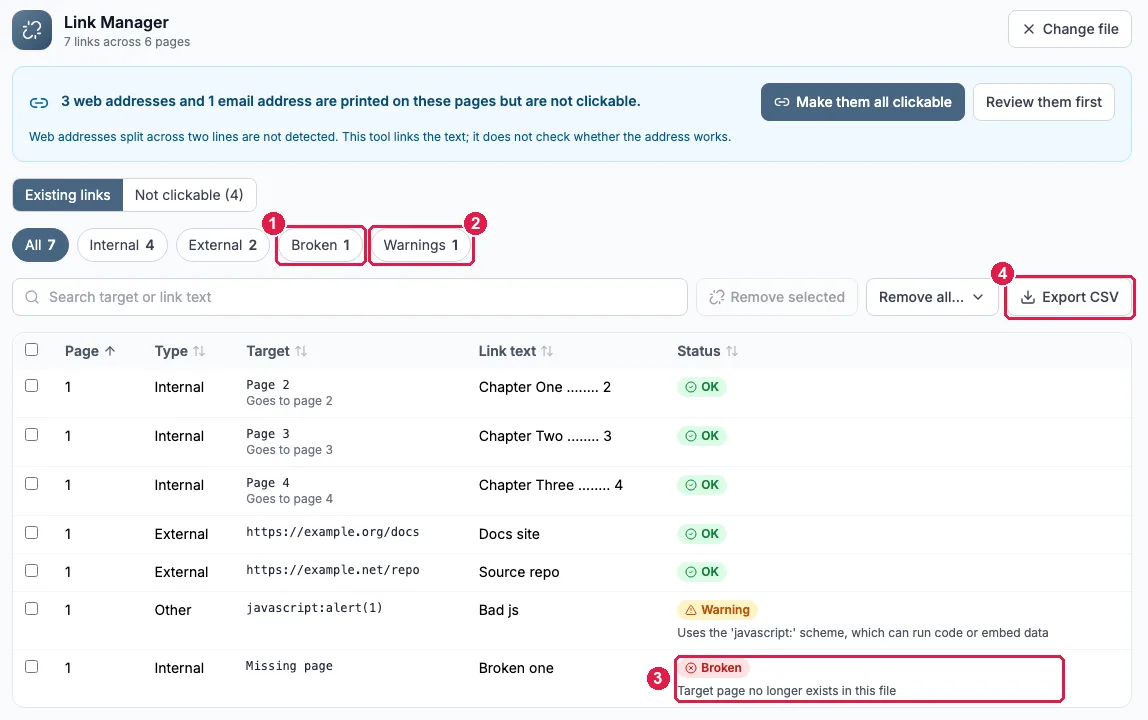
Open the Link Manager and upload the file. No account is needed. The check starts on its own and lists every link with its page, type, target, link text and status.
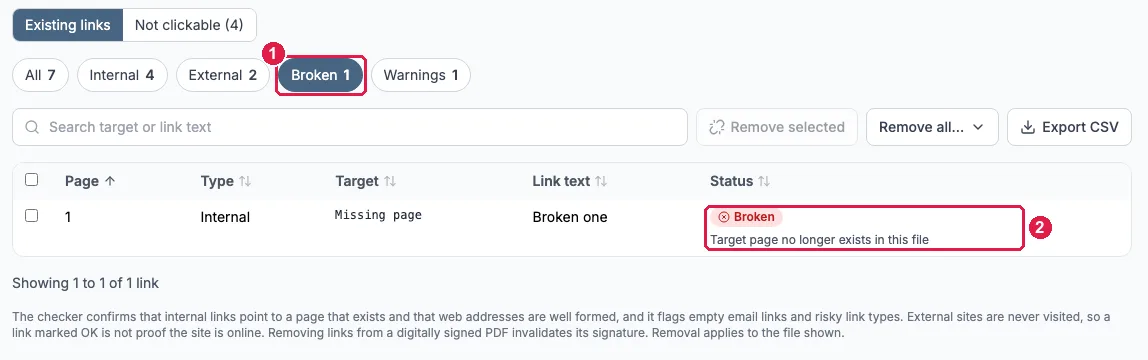
Click the Broken chip
The Broken filter shows only links that cannot work as written. Under the red Broken badge, the Status column gives the reason. In our test file it reads Target page no longer exists in this file.
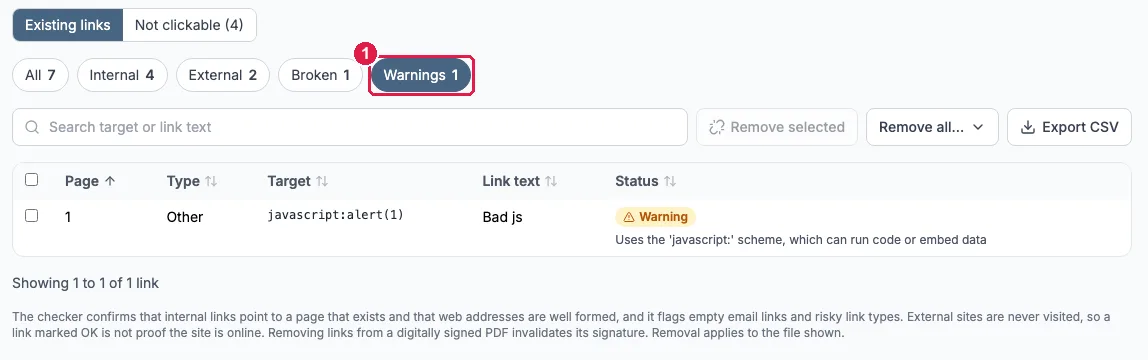
Then click the Warnings chip
Warnings are links that may work but deserve a look, such as a javascript: link, a plain http address or a link box that sits off the page.
Decide: remove, replace or leave
A broken link in a table of contents usually means pages were deleted or moved after the links were made. Remove the dead link, or replace it (see below). A warning you recognise, such as an http address you know is fine, can simply stay.
The CSV export workflow
Click Export CSV above the table. The file is built in your browser from the scan results and opens in Excel or Google Sheets. It has six columns: page, type, target, anchor_text, status and issues. Here is the real export from our test file (some rows left out):
| page | type | target | anchor_text | status | issues |
|---|---|---|---|---|---|
| 1 | internal | Page 2 | Chapter One ........ 2 | ok | |
| 1 | internal | Page 4 | Chapter Three ........ 4 | ok | |
| 1 | external | https://example.org/docs | Docs site | ok | |
| 1 | other | javascript:alert(1) | Bad js | warning | Uses the 'javascript:' scheme, which can run code or embed data |
| 1 | internal | Missing page | Broken one | broken | Target page no longer exists in this file |
Handy ways to use it: filter status to anything other than ok and send the list to whoever owns the document; keep the file as a before-and-after record of a cleanup; or filter type to external and test those addresses, as described next.
Checking outside websites yourself
Since the Link Manager does not open external sites, do this part by hand. In the exported CSV, filter the type column to external. For a short list, click through each target in a browser. For a long list, copy the targets into a text file, one address per line (called urls.txt here), and run this in a terminal on Mac or Linux:
while read -r u; do
  printf '%s %s\n' "$(curl -s -o /dev/null -w '%{http_code}' -L --max-time 15 "$u")" "$u"
done < urls.txt
It prints the HTTP status next to each address. We ran it on the two external links from our test file and got:
404 https://example.org/docs
404 https://example.net/repo
A 200 means the page loaded and a 404 means it was not found. Some sites answer scripts with 403 or 429 even though the page works in a browser, so treat anything other than 200 as "look at this one", not as proof it is dead. This step is separate from PDFCourt and runs on your own computer.
Fixing what you find
- In the Link Manager, open Remove all and choose Remove all broken links, or tick individual rows and click Remove selected.
- Confirm and download the cleaned copy. Your original file is never changed.
- To put a working link back, use the Jump Links tool: draw a box on the page and choose the destination page or web address.
- Upload the new file to the Link Manager again. The table behind the download panel keeps showing the original file, so a second scan is how you confirm the problems are gone.
Removing links from a digitally signed PDF invalidates the signature. Fix the links before signing.
Frequently Asked Questions
Does the PDF link checker visit the websites my PDF links to?
No. External sites are never visited. The checker confirms that internal links point to a page that exists in the document and that web addresses are well formed (a scheme and host, no stray spaces). Because nothing outside the file is opened, it cannot tell you whether a website is still online. Treat a link marked OK as well-formed, not as confirmed live.
What counts as a broken link in a PDF?
A link is marked broken when it is an internal link to a page that does not exist or to a named destination that is missing (for example after pages were deleted), a link with an empty or malformed URL (no scheme or host, or containing whitespace), an empty mailto link, or a remote-file link without a filename.
What is the difference between Broken and Warning?
Broken means the link cannot work as written. A warning means the link may work but deserves a look: javascript:, data: and vbscript: links, file: links that point to an absolute path on someone's computer, plain http links, link boxes with zero area or placed off the page, Launch actions, and links with no action at all.
Can it tell me whether an email address is real?
No. The only email problem it flags is an empty mailto link. It does not check whether an address is valid or whether the mailbox exists.
An internal link shows OK but jumps to the wrong page. Why?
The checker only confirms that the target page exists. If pages were reordered, a link can still point at a real page that is no longer the one you meant. After editing a document, click through the table of contents once.
How do I fix a broken link?
Remove it in the Link Manager, using Remove all broken links or by ticking individual rows, then download the cleaned copy. To put a working link in its place, add one with the Jump Links tool.
Related Guides
How to Remove Hyperlinks from a PDF →
Remove one link, all broken links, or every link
Extract PDF Links to CSV and Make URLs Clickable →
More on the CSV export and printed addresses
How to Create PDF Jump Links →
Add working links to replace the broken ones
How to Delete Pages from a PDF →
Deleting pages is a common way links end up broken