How to Build an Exhibit Package: Bates Numbers, a Clickable Index & Filing Preflight
A real walkthrough, not a sales pitch: add your documents, label them as exhibits, pick the mode that fits this filing, Bates-number the package (including continuing a prior production), and — if you use Full Mode — read what a real Filing Preflight finding actually says.
What's actually different here
A genuine zero-upload, browser-only mode for merging and Bates-numbering exhibits isn't a new idea — Exhibit Flow, E-Ring Binder, and Final Exhibits 2 all market local-only processing too. If you've looked at exhibit software before, "your files never leave your browser" on its own won't tell you much you didn't already expect.
What none of those tools do is offer that local mode alongside a genuinely full-featured server mode, in the same wizard, with divider pages, a case caption, a clickable index, a CSV exhibit log, and an integrated Filing Preflight check for things like embedded JavaScript, suspected unapplied redactions, and leftover metadata. You pick per filing, not per product. Sensitive documents you'd rather not upload anywhere go through Local Mode; the same wizard builds a complete, indexed filing package the moment you actually need one.
This post walks the real workflow end to end, with real screenshots and a real Filing Preflight finding, so you can see exactly what you'd be sending a client or a court before you try it yourself.
Step 1: Add and Arrange Your Exhibits
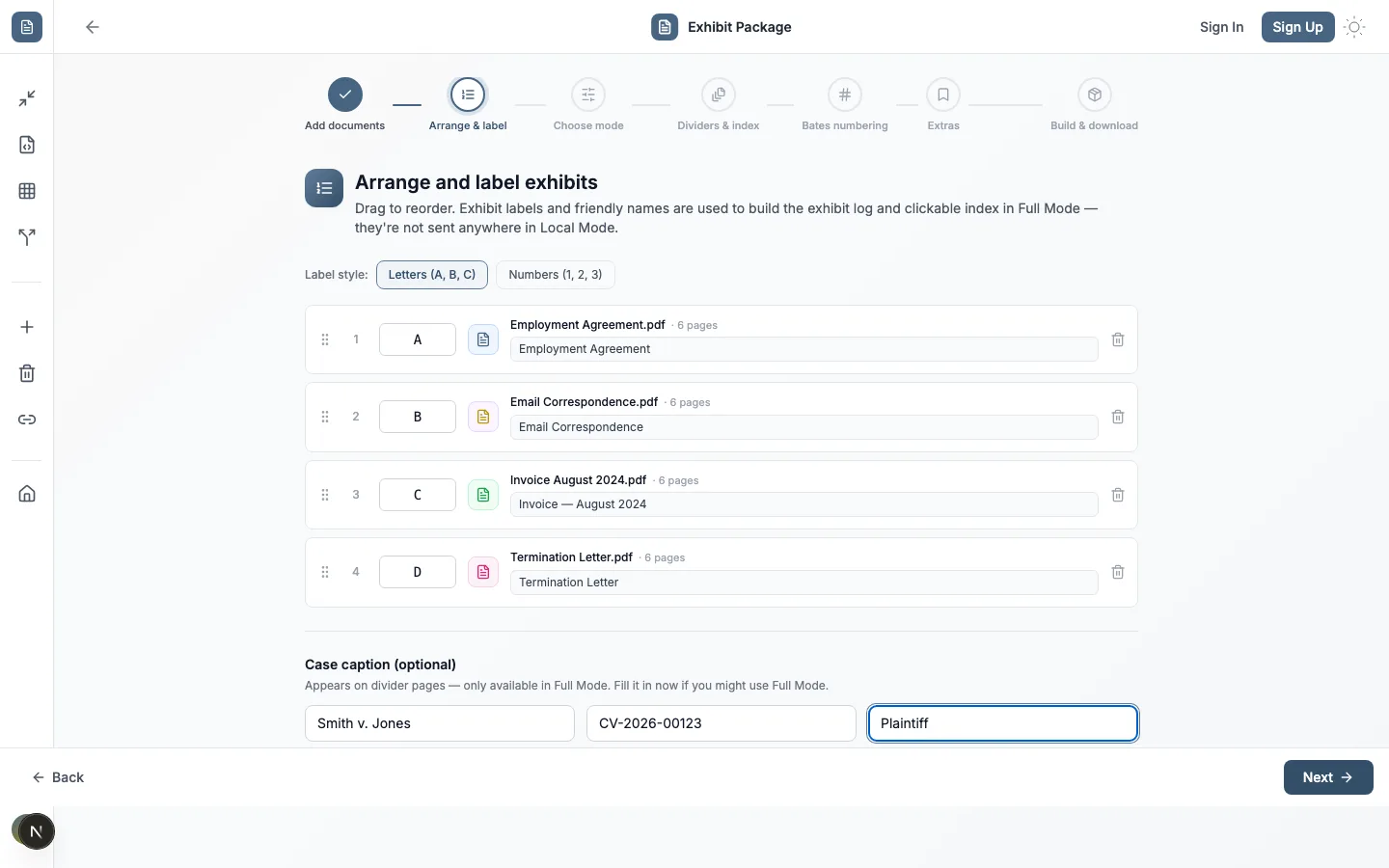
Upload every document that belongs in the production. Each one gets a color-coded row you can drag to reorder — that order becomes the merge order, the Bates sequence, and (in Full Mode) the order exhibits appear in the index. Pick a label style — letters (A, B, C…) or numbers (1, 2, 3…) — and give each exhibit an optional friendly name like "Employment Agreement" or "Invoice — August 2024." Duplicate labels get flagged immediately, before you can move on.
The case caption is optional — and mode-dependent
Case name, case number, and party fields live on this same screen so you can fill them in before deciding on a mode. They only render anywhere in the output if you go on to choose Full Mode and turn on divider pages — Local Mode's output has no captions at all, by design.
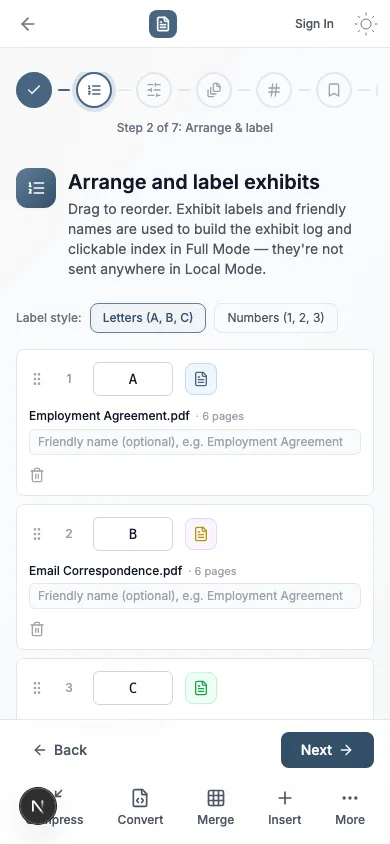
Reordering works the same way on mobile — drag handles, or the same label and friendly-name fields, just stacked for a narrow screen.
Step 2: Choose Local or Full Mode — Honestly
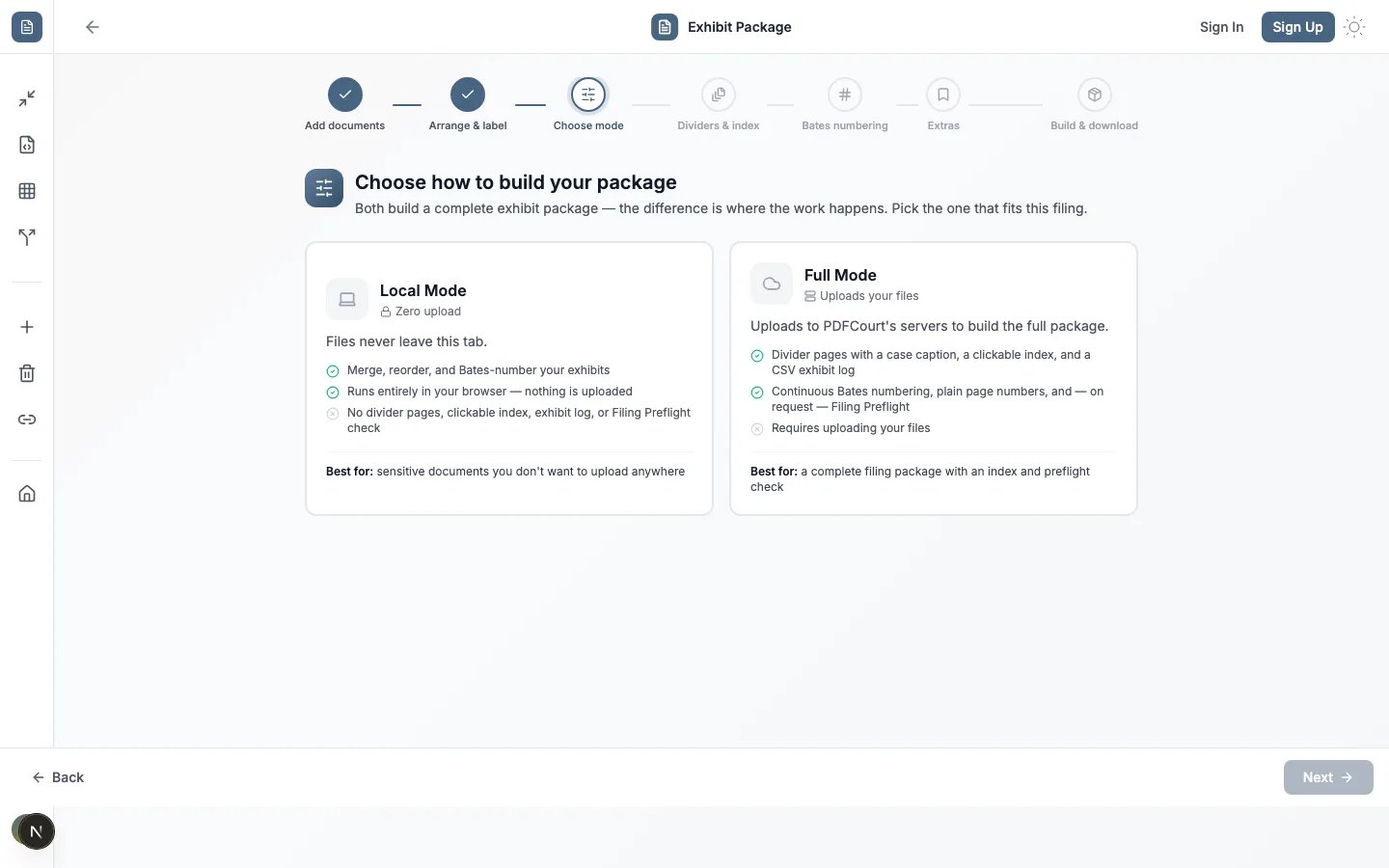
This is the one decision in the wizard that matters most, so it gets its own full step with no "recommended" badge on either option. Both build a real, complete exhibit package. The difference is where the work happens — and what that location does and doesn't let you build.
Local Mode
- Merge, reorder, and Bates-number your exhibits
- Runs entirely in your browser — nothing is uploaded
- Optional basic bookmarks, added by hand
- No divider pages, clickable index, exhibit log, or Filing Preflight check
Best for: sensitive documents you don't want to upload anywhere.
Full Mode
- Divider pages with a case caption, a clickable index, and a CSV exhibit log
- Continuous Bates numbering, plain page numbers, and — on request — Filing Preflight
- Requires uploading your files
Best for: a complete filing package with an index and preflight check.
Neither option is a watered-down version of the other. Local Mode's merged, Bates-numbered PDF is a real, finished result on its own — it's just a smaller result, not a crippled one. The rest of this walkthrough covers both paths, since the wizard genuinely branches at this step.
Step 3: Bates Number the Package
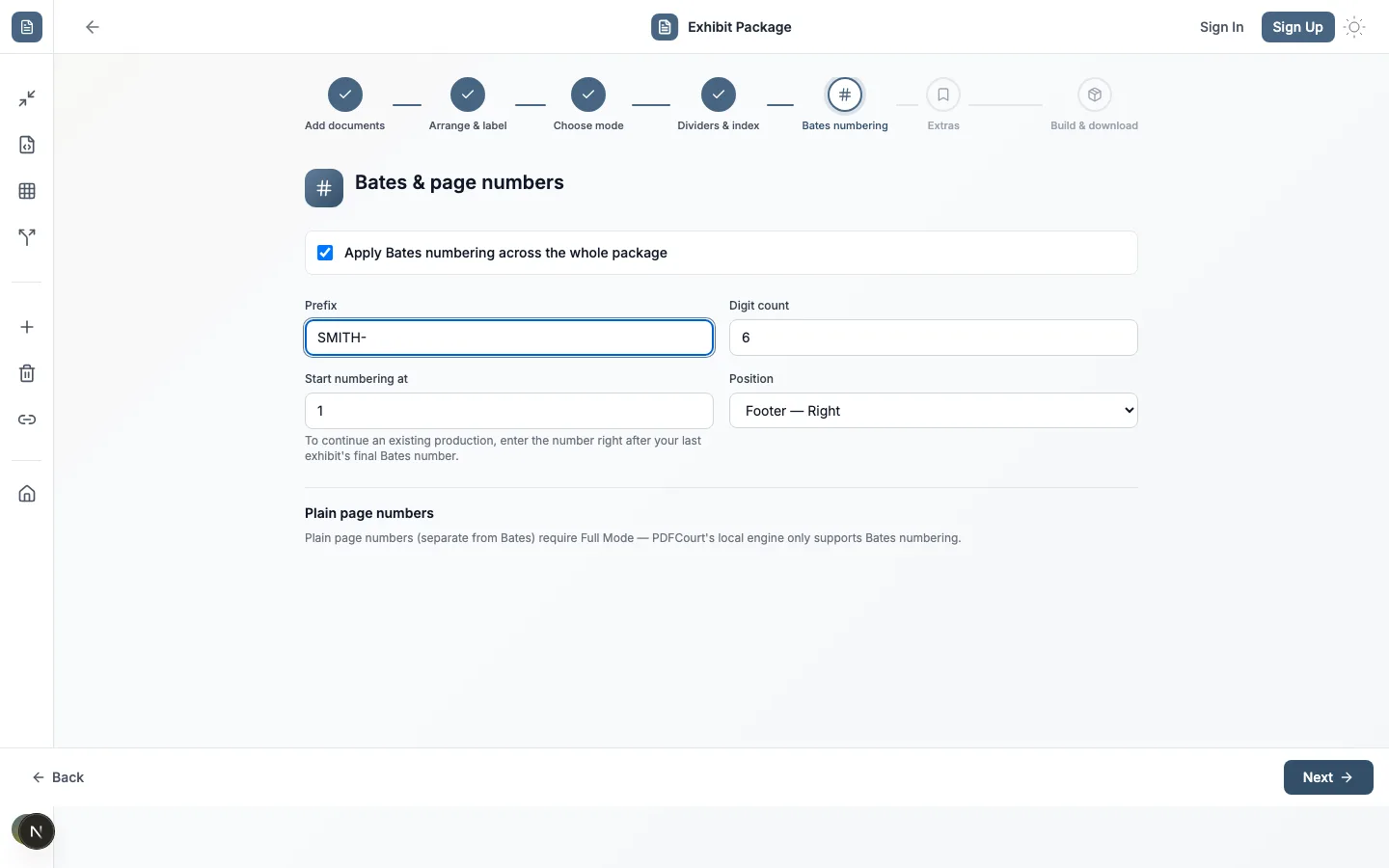
Bates numbering works the same way in both modes: a prefix, a digit count, a starting number, and a position. Six digits (000001) is the de facto standard for most productions — bump it up for a very large one.
Continuing a prior production
"Start numbering at" is what makes this work for a second or third production in the same case: if your last set ended at SMITH-000482, set the start number to 483 and this package picks up exactly where the last one left off, across the whole new set. Full Mode adds a second, separate option — plain page numbers, independent of Bates — which the local engine doesn't support at all; if you need that, it's a Full Mode feature, not a missing setting.
Step 4: Divider Pages and the Clickable Exhibit Index — Full Mode Only
This step is where Full Mode diverges most visibly from Local Mode. Local Mode's engine only merges, reorders, and Bates-numbers — that's a boundary of what can run entirely client-side, not a feature PDFCourt is holding back. Choose Full Mode and this step turns on two independent options.
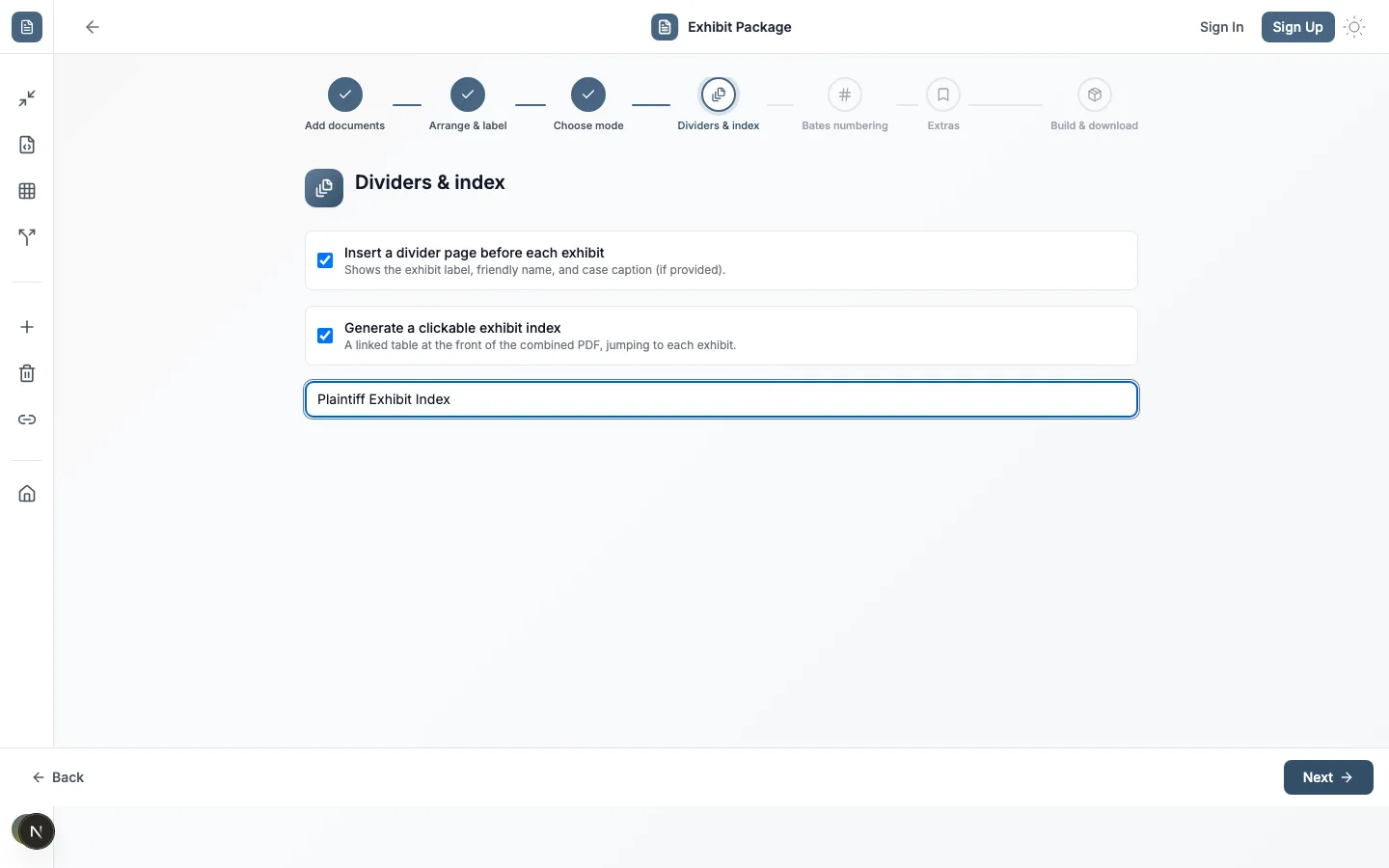
Divider page before each exhibit
Shows the exhibit label, its friendly name, and the case caption you filled in during Step 1 — if you left the caption blank, the divider still shows the label and name.
Clickable exhibit index
A linked table at the front of the combined PDF, with a custom title (e.g. "Plaintiff Exhibit Index"), jumping straight to each exhibit's stamped page.
Step 5: Build and Download
The build summary recaps every choice you made before you commit — exhibit count, mode, the Bates range, and whichever Full Mode extras you turned on — so there's nothing to guess about what you're about to get.
Local Mode's result
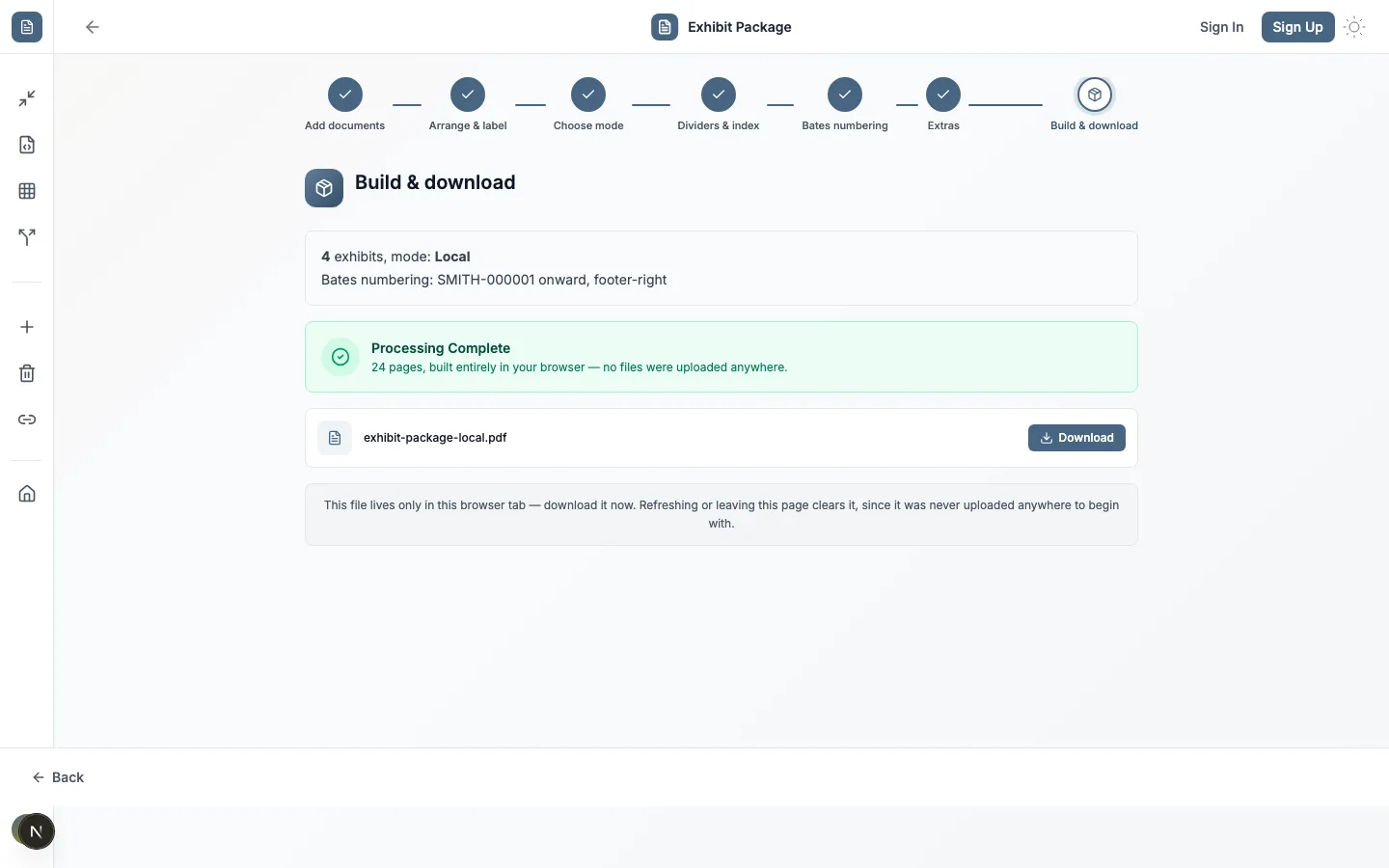
The file lives only in this browser tab — refreshing or navigating away clears it, since it was never uploaded anywhere to begin with. Download it before you go.
Full Mode's result
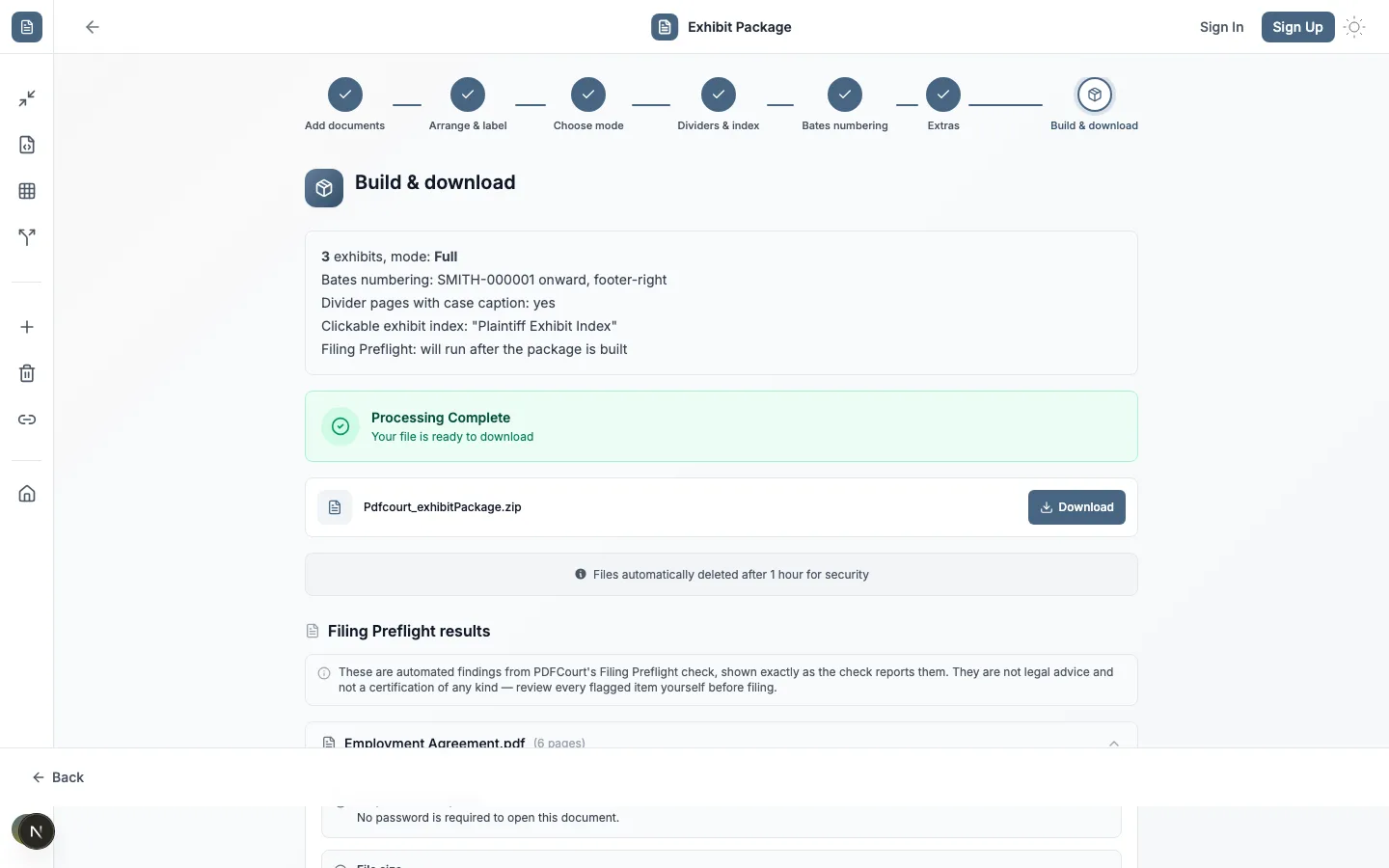
Full Mode returns a zip: the combined, stamped, indexed PDF, plus exhibit_log.csv — a plain spreadsheet with one row per exhibit, columns for Exhibit label, Friendly name, Page count, Start page in combined doc, Bates begin, and Bates end. That last pair is what most people actually want for a cover email or a filing certificate — the exact Bates range each exhibit occupies, without opening the PDF and counting.
Files uploaded for Full Mode are deleted automatically after processing (the wizard shows a 1-hour deletion window in this screenshot) — download the zip before it expires.
Step 6: What a Real Filing Preflight Finding Looks Like
Filing Preflight is opt-in, shown as a single checkbox during the Extras step in Full Mode, and it runs on your original exhibit files — not the combined output — once per file. The wizard shows its exact scope and limits before you turn it on:
Every finding is tagged one of three ways, and the report shows all three, not just the bad news:
Something specific was directly detected — e.g. an unapplied redaction annotation still on the page.
A pattern that often indicates a problem, worth a manual look before relying on it.
Nothing was found for that check — stated plainly, not just omitted.
Here's a real example of the kind of thing it flags — the redaction check specifically, one of the checks that doesn't exist anywhere else in PDFCourt's tools. If it finds an opaque shape covering text that's still selectable underneath (the classic "drew a black box in Acrobat, never actually removed the text" mistake), the finding reads almost exactly like this:
"Potential issue: an opaque filled shape (an annotation, or a shape drawn directly on the page) was found with extractable text underneath it on: page 4. This can indicate a box drawn over content rather than the content itself being removed."
Notice what it doesn't say: it doesn't say the redaction failed, and it doesn't say the document is unsafe to file. It says what it found — text underneath a box on a specific page — and leaves the judgment call to you, which is exactly the wording discipline used everywhere else in this feature.
How This Compares to Other Exhibit Tools
Local-only, browser-based merging and Bates numbering is already common ground in this category — Exhibit Flow, E-Ring Binder, and Final Exhibits 2 all offer it. The comparison that actually matters is what's available once you need more than that.
| Capability | PDFCourt Exhibit Package | Exhibit Flow / E-Ring Binder / Final Exhibits 2 |
|---|---|---|
| Genuine zero-upload local mode | Yes | Yes — standard in this category |
| Full server mode with divider pages, case caption, and index | Yes | Not alongside a local mode, in the same tool |
| CSV exhibit log with Bates ranges | Yes, in Full Mode | Varies by tool |
| Integrated Filing Preflight check (embedded JS, redaction-overlay, metadata, GPS) | Yes | Not offered |
| Continue Bates numbering from a prior production | Yes, in either mode | Varies by tool |
The gap this fills
It's not the local-only processing — that's table stakes now. It's having a real local mode and a real full mode in the same wizard, plus a preflight check none of the named competitors have at all, so you don't have to switch tools depending on how sensitive a given filing is.
Frequently Asked Questions
What is the difference between Local Mode and Full Mode?
Local Mode merges, reorders, and Bates-numbers your exhibits entirely inside your browser — your files are never uploaded anywhere. Full Mode uploads your files to build divider pages with a case caption, a clickable exhibit index, a CSV exhibit log, and (on request) a Filing Preflight check — real server-side capabilities Local Mode genuinely cannot do.
Does Local Mode produce a lesser result than Full Mode?
No — Local Mode produces a real, complete merged and Bates-numbered PDF. It's a smaller, honest result (no dividers, index, or exhibit log), not a degraded version of Full Mode's output.
What does the Filing Preflight check actually check?
It flags embedded JavaScript, suspected unapplied redactions, leftover document metadata, GPS data in embedded images, password protection, and inconsistent page sizes — tagged as confirmed issues, potential issues, or informational. It does not certify a document as compliant, safe, or court-ready; review every finding yourself.
Can I continue an existing Bates numbering sequence?
Yes — set "Start numbering at" to the number right after your last exhibit's final Bates number, in either mode.
What happens to my files in Full Mode?
Files are encrypted in transit and at rest, processed to build your package, and deleted after processing — see PDFCourt's security page for details.
Does the exhibit log replace the clickable index?
No — they're complementary. The clickable index is a linked page inside the combined PDF itself; the CSV exhibit log is a separate spreadsheet-friendly file listing each exhibit's label, friendly name, page count, starting page in the combined document, and Bates begin/end range, for anyone who needs the data outside the PDF.
One wizard, two honest modes
Real local mode
A complete merged, Bates-numbered PDF, zero upload — not a teaser for the paid path.
Real full mode
Divider pages, a case caption, a clickable index, and a CSV exhibit log when you need them.
A check nobody else has
Filing Preflight surfaces things worth a second look — informational, not a certification.
Ready to build your exhibit package?
Free, no signup required to try either mode.
Related Guides
Bundle & Bates an Exhibit Production →
The faster, simpler shortcut when you don't need Local Mode or Filing Preflight.
How to Redact a PDF Free →
True content removal — fix an overlay-only redaction before Filing Preflight flags it.
How to Remove Metadata from a PDF →
Strip leftover author names, GPS data, and hidden document properties.
Insert, Organize, Number & Link a PDF →
The general-purpose page-editing workflow underneath exhibit assembly.