How to Build a Professional PDF Packet — Free
Insert pages from other files, reorder and clean them up, stamp page numbers, then add a clickable jump-link table of contents. Four tools, one free workflow, zero signups — here's exactly what each step looks like.
Why bother with all four steps?
Most "PDF editor" content covers one operation at a time — how to merge, how to add a page number, how to link a page. In practice, a real packet (a board deck, a court exhibit bundle, a thesis, a client proposal) usually needs all four in sequence: pull pages in from other documents, clean up the order, number every page consistently, and give the reader a way to jump straight to what they need instead of scrolling through eighty pages.
Adobe Acrobat can do all of this too, but it's a ~$20/month subscription and most free tools only do one piece — a merge tool that can't reorder, or a page-number stamper with no way to add navigation. This walkthrough uses four PDFCourt tools that share the same underlying editor and file, so nothing gets re-uploaded between steps.
Step 1: Insert & Organize the Pages
Insert and Organize are the same editor
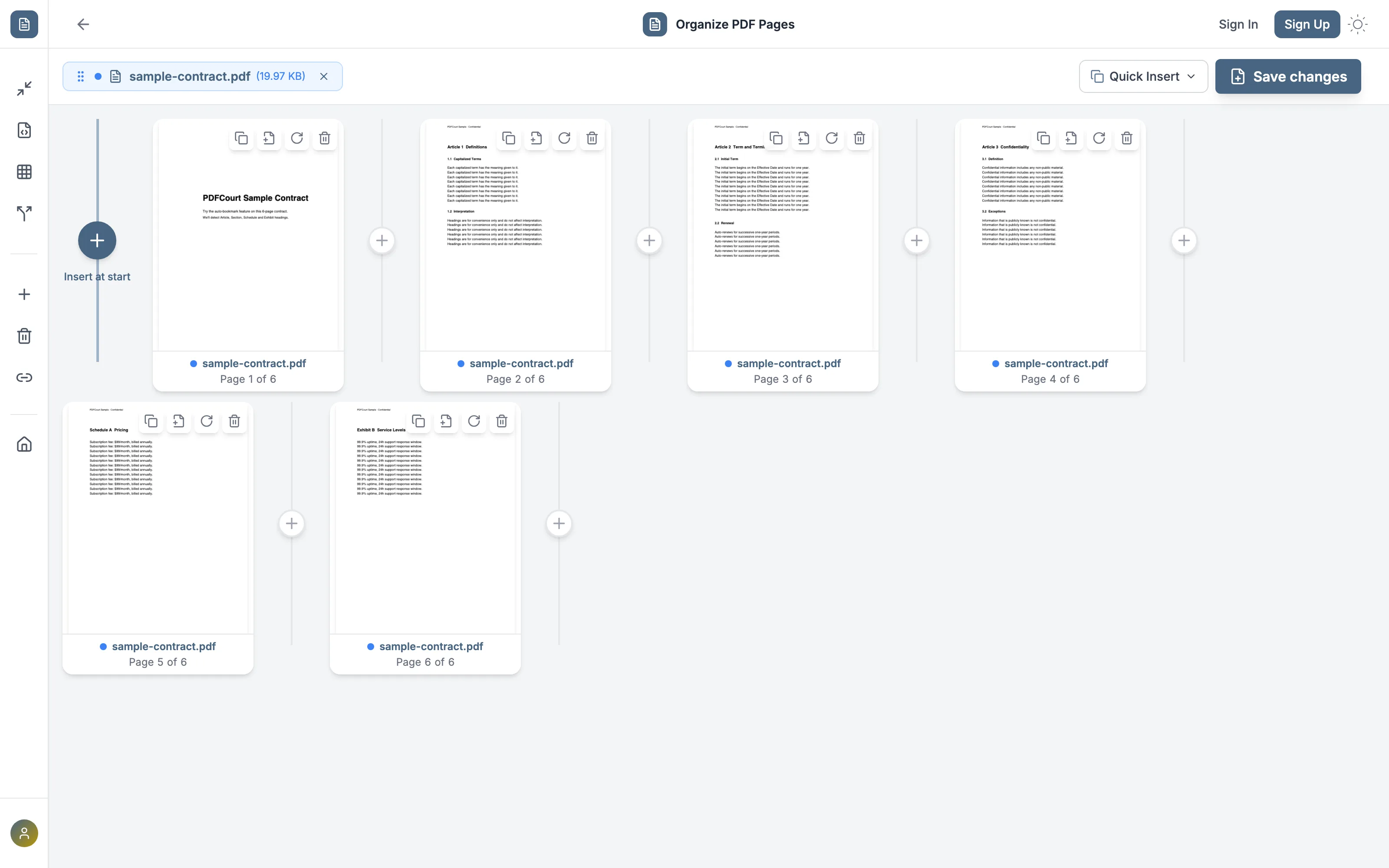
Whichever one you open, you get: insert pages from another PDF at any position (not just appended at the end), drag-and-drop reordering, duplicate, rotate, and delete — all in one grid view, all before you download anything.
Upload your base document
Open PDFCourt.com/organize and drop in the PDF you're building the packet around. Every page renders as a thumbnail with its own quick-action row.
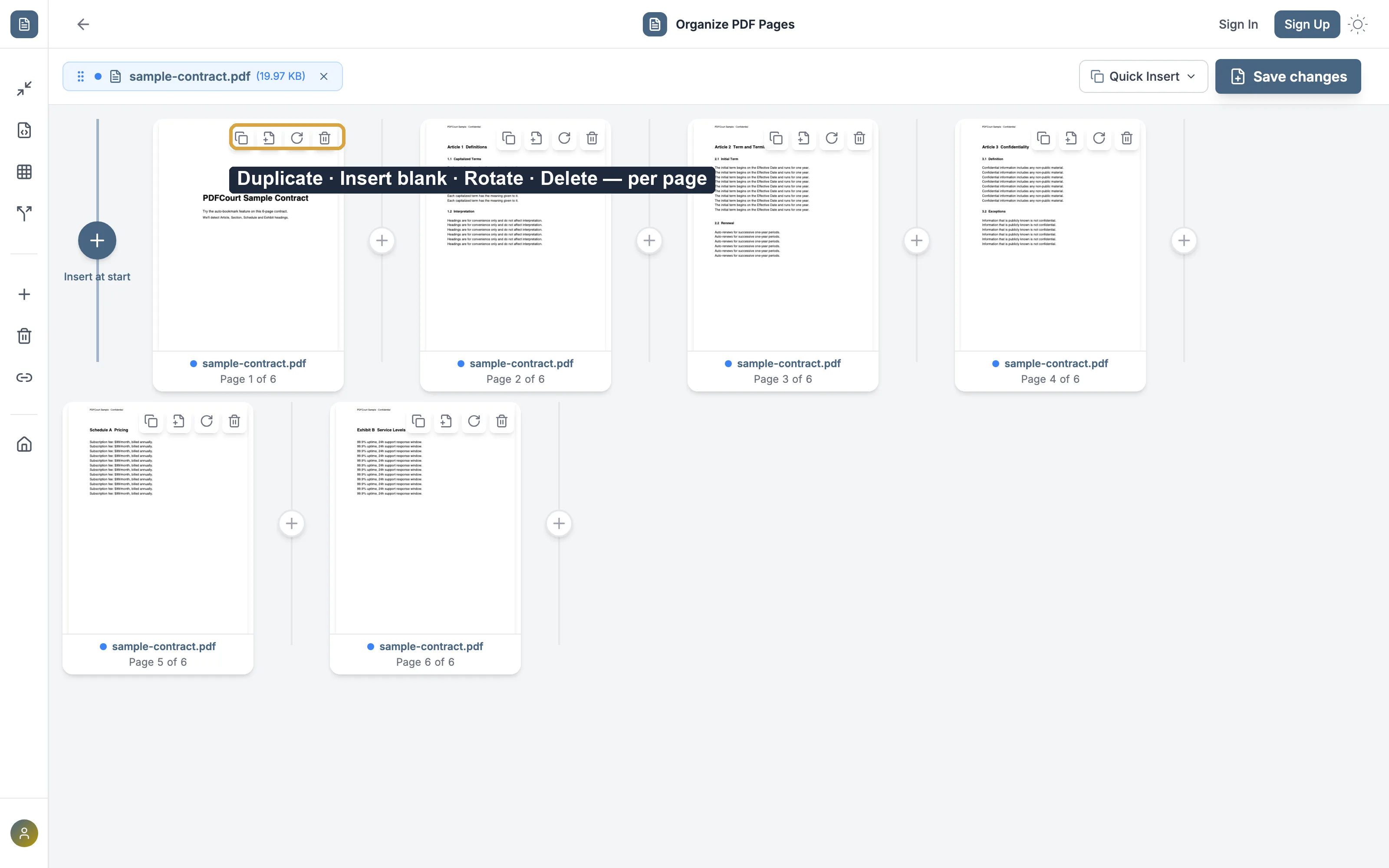
Fix up individual pages — duplicate, insert blank, rotate, delete
Every thumbnail has the same four one-click controls. A scanned page came in sideways? Rotate it in place — no re-upload, no re-scan.
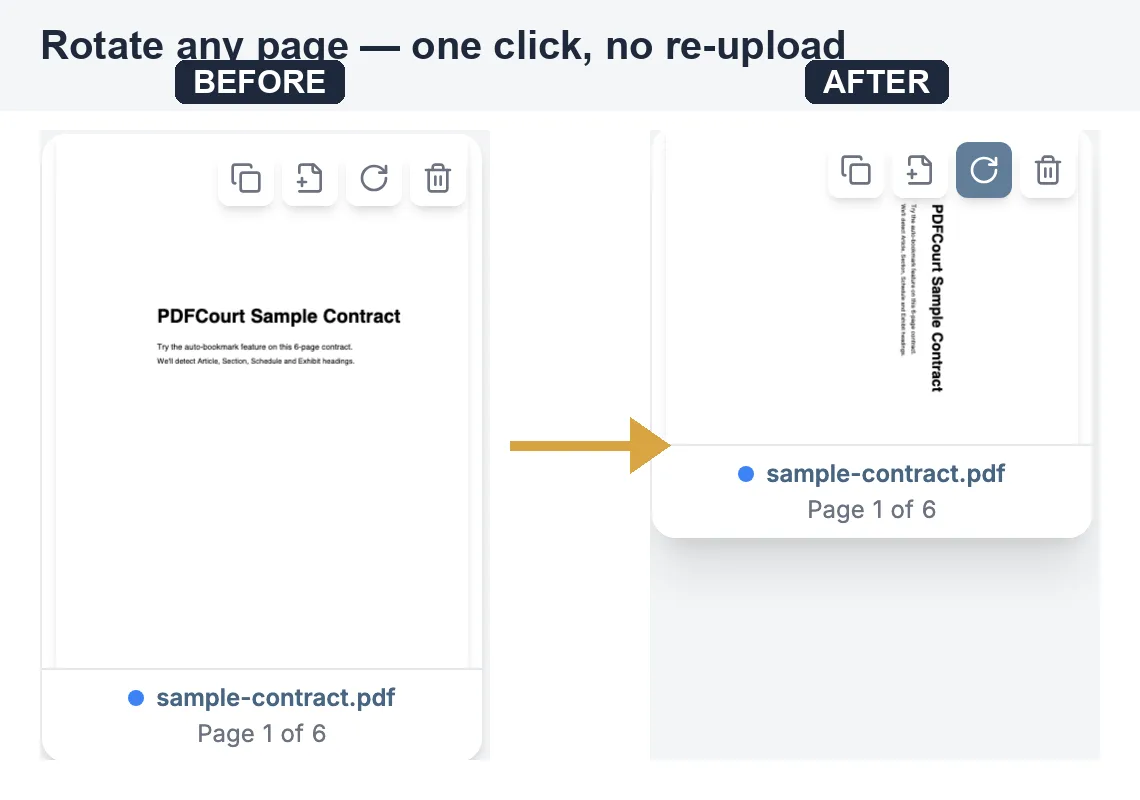
Rotate a misoriented page — see it happen instantly
Click the rotate icon once per 90°. The thumbnail updates immediately, so you can confirm orientation before you ever download.
Insert pages from another file, then drag to the right position
Click any of the "+" markers between pages to insert an existing file, duplicate the previous page, or add a blank page right there — not just at the very end of the document, which is where most free merge tools stop.
Step 2: Stamp Page Numbers
Once the packet is in the right order, add sequential numbers with PDFCourt.com/page-numbers. Pick header or footer, left/center/right, a number format, a starting number, and an optional prefix — the preview updates live as you change any setting.
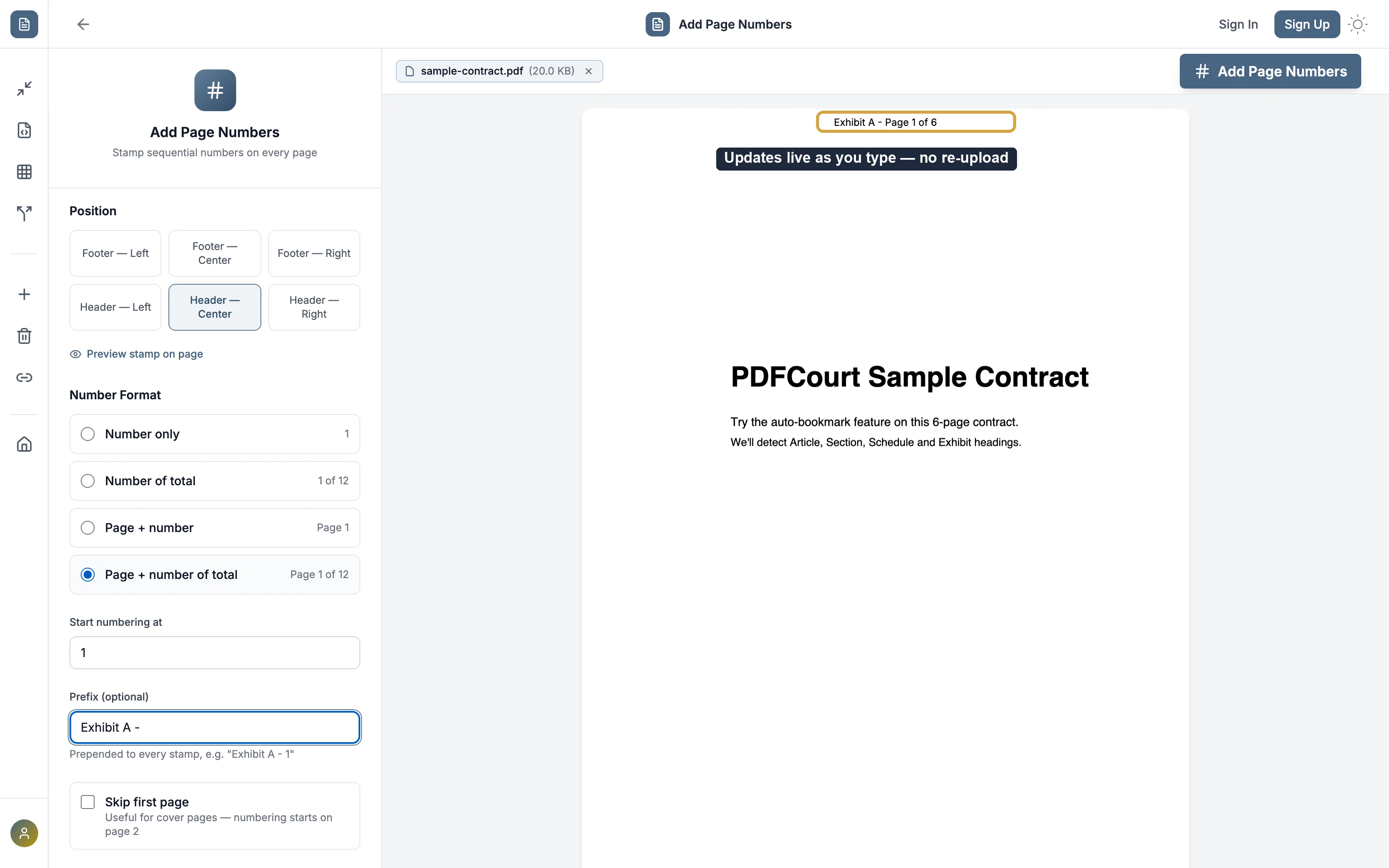
A custom prefix like "Exhibit A -" is common for court bundles, appendices, and any multi-part document set where each section needs its own identifiable numbering.
Step 3: Add Clickable Jump Links
This is the step most free PDF tools skip entirely — most only let you annotate a PDF, not actually link one part of it to another. With PDFCourt.com/jumplinks, you draw a box over any text (a table-of-contents entry, an "Exhibit A" reference, a citation) and point it at a page — readers click through instead of scrolling.
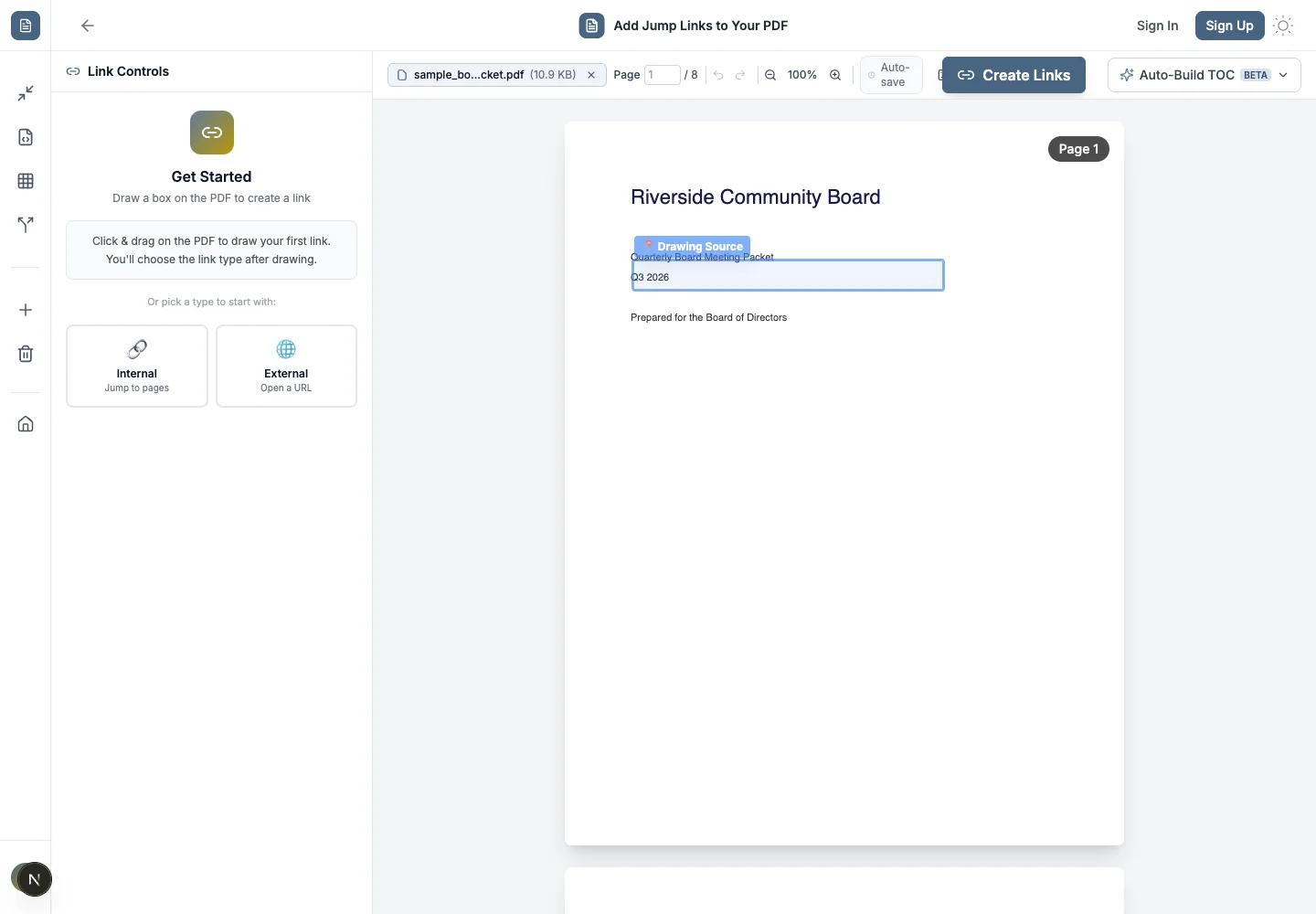
After drawing the box, choose whether it jumps to a page inside the same PDF or opens an external URL.
The order matters — do it in this sequence
Insert & Organize first
Get the final page order locked in before you number or link anything.
Page numbers second
If you insert or reorder pages after numbering, everything after the change point no longer matches its printed number.
Jump links last
Links point to a page position. Draw them after the page order is final so nothing points to the wrong place.
Good news: adding page numbers after jump links exist does not break those links — numbers are a visual stamp, not a navigation target. The only thing that invalidates a jump link is changing page order or inserting pages afterward.
Comparison: PDFCourt vs. Adobe Acrobat vs. SmallPDF
| Capability | PDFCourt | Adobe Acrobat | SmallPDF / iLovePDF |
|---|---|---|---|
| Insert pages at any position | Free | $20/mo | Append-only on most free tools |
| Drag-reorder, duplicate, rotate per page | Free | $20/mo | Limited, often behind signup |
| Custom page number format/prefix | Free | $20/mo | Basic or missing |
| Visual clickable jump-link editor | Free | $20/mo | Not offered |
| Signup required | No | Yes (paid account) | Usually, for full features |
🏆 The gap this fills
General tools like SmallPDF cover the basics at huge scale, but none bundle position-aware insert, per-page organize, custom page numbering, and a real visual jump-link editor for free in one place. That combination is the one thing PDFCourt does that the big general-purpose tools don't.
Frequently Asked Questions
Are Insert and Organize the same tool?
Yes — Organize is the same page editor as Insert, just reached from a different starting point. Both give you insert-from-file, drag reorder, duplicate, rotate, and delete in one grid.
Will inserting or reordering pages break my page numbers?
If you number first, yes — everything after the change point shifts out of sync. Finish assembling and organizing, then add page numbers last.
Do jump links still work after I add page numbers?
Yes. Page numbers are a visual stamp; jump links point to a page position, not the printed number. Only reordering or inserting pages after the links are drawn will break them.
Do I need to sign up for any of this?
No. Insert, Organize, Page Numbers, and JumpLinks all work with no account on the free tier, with generous size limits and no daily caps.
Can I do all of this without Adobe Acrobat?
Yes. Acrobat can do each of these individually but costs roughly $20/month. PDFCourt does insert, organize, page numbering, and clickable jump links for free, entirely in the browser.
One packet, four tools, zero cost
No re-uploading
Insert and Organize share the same editor and file.
100% free, no signup
Every tool in this workflow works without an account.
Real navigation
A clickable jump-link editor most free tools don't offer at all.
Ready to build your packet?
Start with Organize, finish with JumpLinks — all free.