Bundle & Bates Number an Exhibit Production
Merge every exhibit, Bates number continuously, and auto-build a clickable index — in one upload, free, no Adobe.

💡 The Problem With Assembling a Production by Hand
- • Merge every exhibit in one tool
- • Bates-stamp the merged file in a second tool
- • Build the index and draw every link by hand in a third
- • Re-do all three if you catch a mis-ordered exhibit
- • Upload everything once, arrange the order
- • Merge, stamp, detect, and link happen together
- • The index is built from the already-stamped file — numbers always match
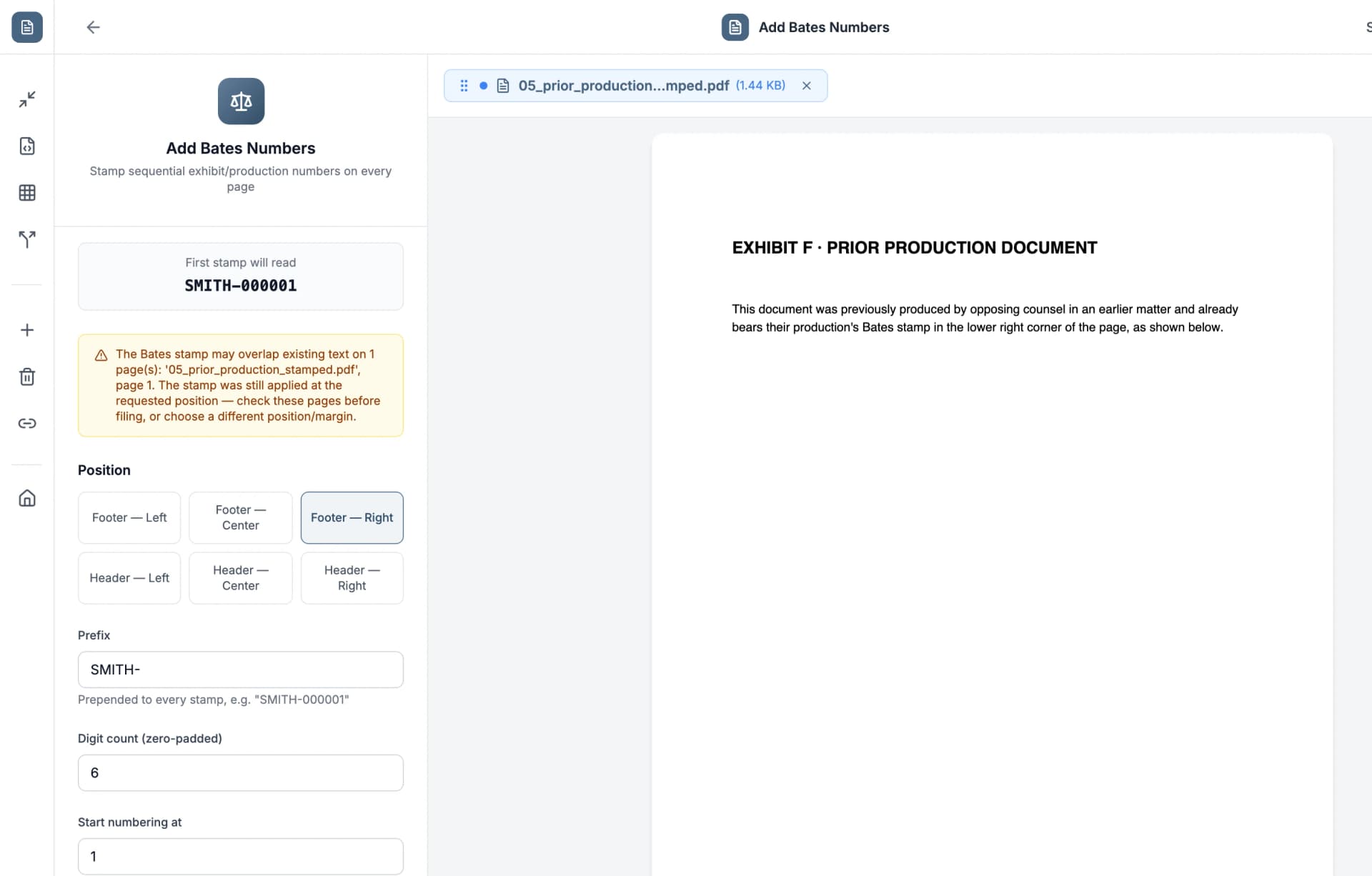
- • Overlap with an existing stamp gets flagged, not silently stamped over
Upload Every Exhibit and Arrange the Order
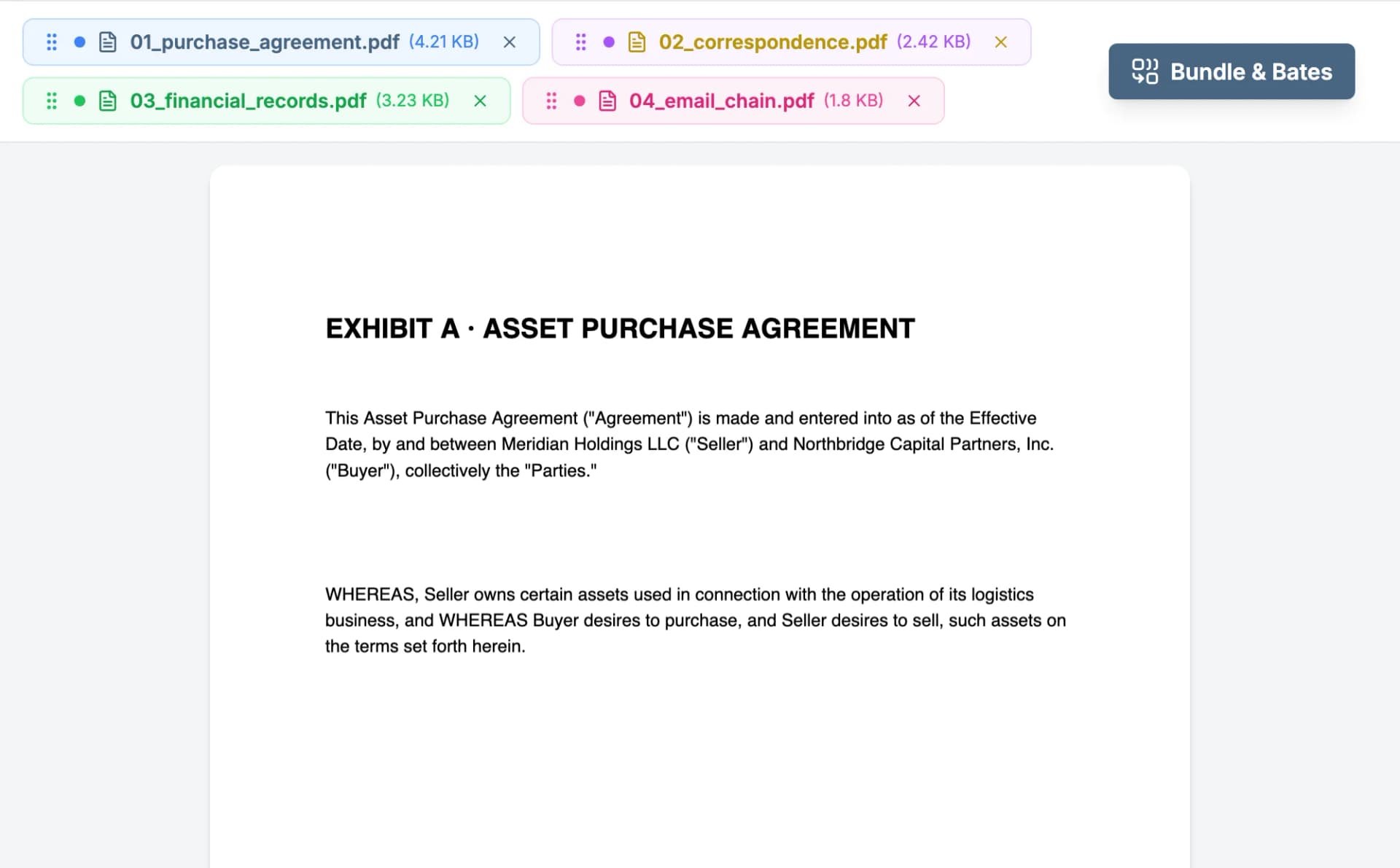
Drag in every file that belongs in the production — the purchase agreement, correspondence, financial records, whatever's part of the set. Each file gets its own color-coded chip with a drag handle, so you can reorder them right in the browser. That order becomes both the merge order and the Bates numbering sequence, so get it right before you run anything.
Set Your Bates Prefix, Position, and Digit Count
Pick a prefix (the party name or case identifier, e.g. "SMITH-"), choose how many digits to zero-pad to, and set where the stamp sits on the page. The "Document type" selector tunes how section headings get auto-detected for the table of contents — Legal, General, or Academic.

Check the Live Stamp Preview Before You Run Anything
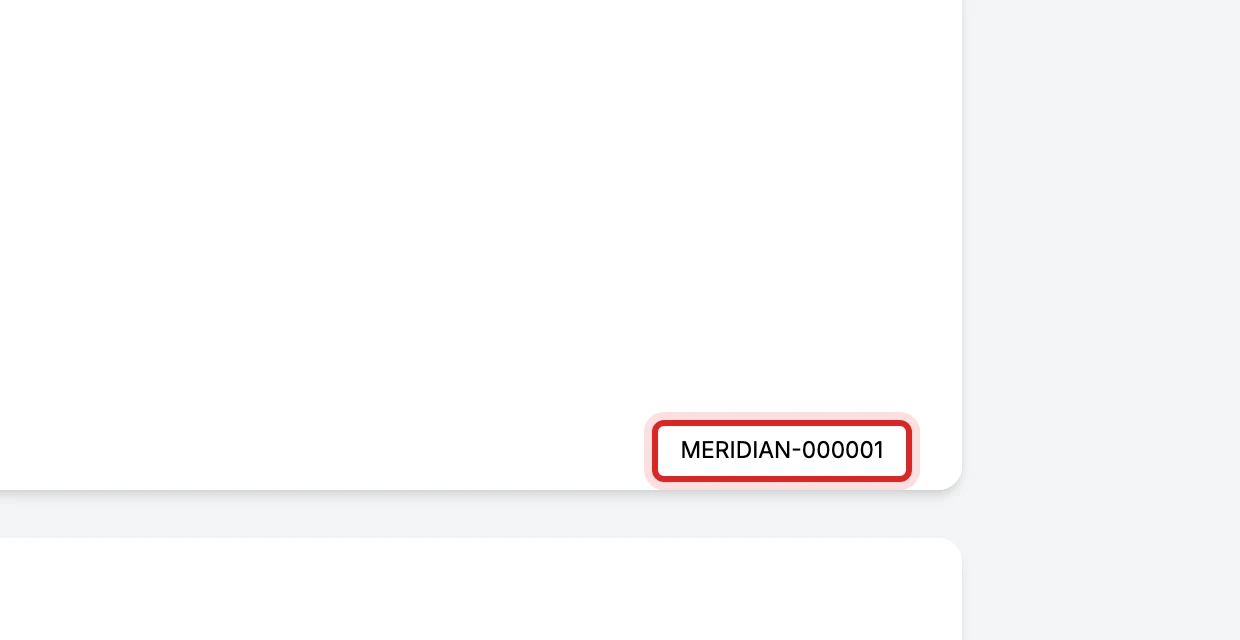
The exact label your first stamp will read renders directly on the actual uploaded page — not a mockup, the real page — in the corner you picked. No guessing what the output will look like before you commit.
Run It — Merge, Stamp, Detect, and Link in One Job
One click merges every file in your chosen order, stamps continuous Bates numbers across the whole thing, detects section headings, and builds a linked table of contents pointing at the correct stamped page for each one. No separate visits to a merge tool, then a Bates tool, then a linking tool.
Download the Finished Bundle
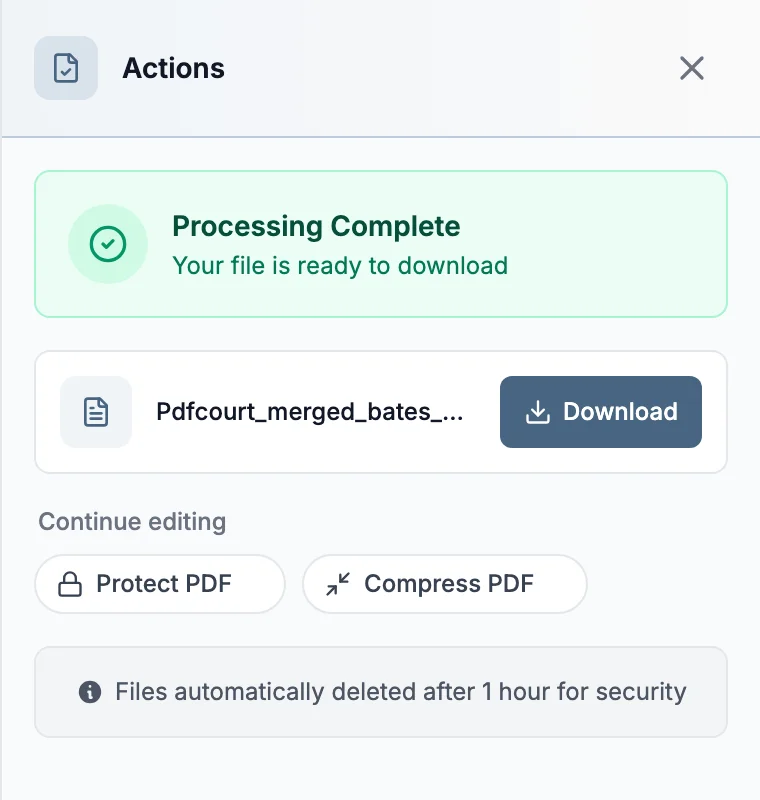
One file comes back: merged, continuously Bates-stamped, with a clickable index already built and linked to the correct page. Ready to file or produce as-is.
Related Guides
Bates Numbering — Free, No Adobe
The standalone Bates tool, including the stamp-overlap warning shown in Step 4.
Legal PDF Tools — The Full E-Filing Checklist
Redaction, PDF/A conversion, and every other step in preparing a court-ready PDF.
How to Create Jump Links in a PDF
The manual link-drawing tool underneath Bundle & Bates' auto-built index.
Merge PDF Files
The standalone merge tool, for when you don't need Bates numbers or an index.
Bundle Your Next Production in One Step
Merge, Bates number, and auto-link an index — free, no sign-up, no Adobe.
Free, no sign-up required