How to Crop a PDF Free (2026 Guide)
Trim scanner margins, cut white space, or resize every page to a standard size — free, no signup, no watermark, right in your browser.
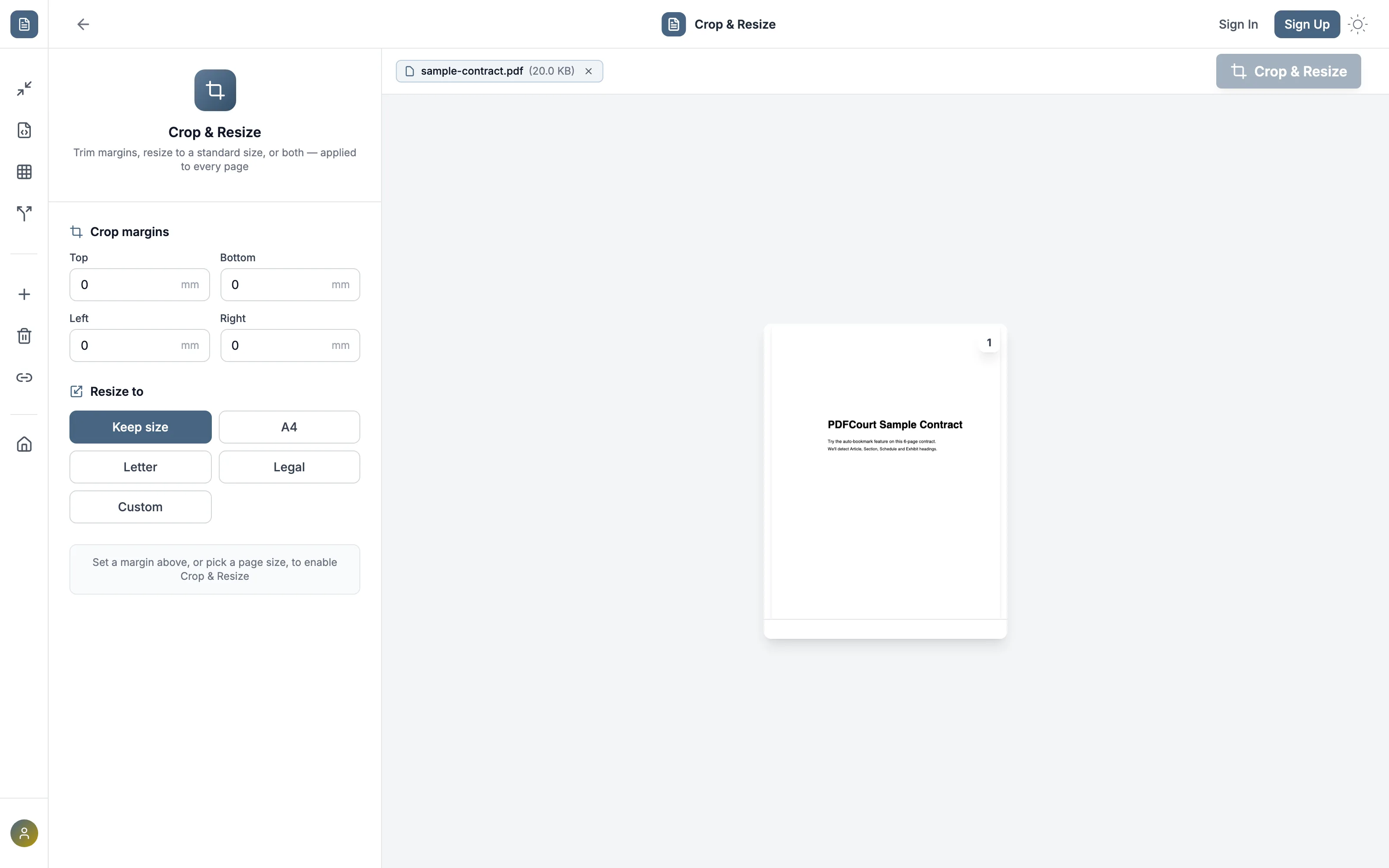
Method 1: PDFCourt (100% Free Online)
RECOMMENDED✓ Best for: scanned documents with dark borders, or standardizing page size across a document set
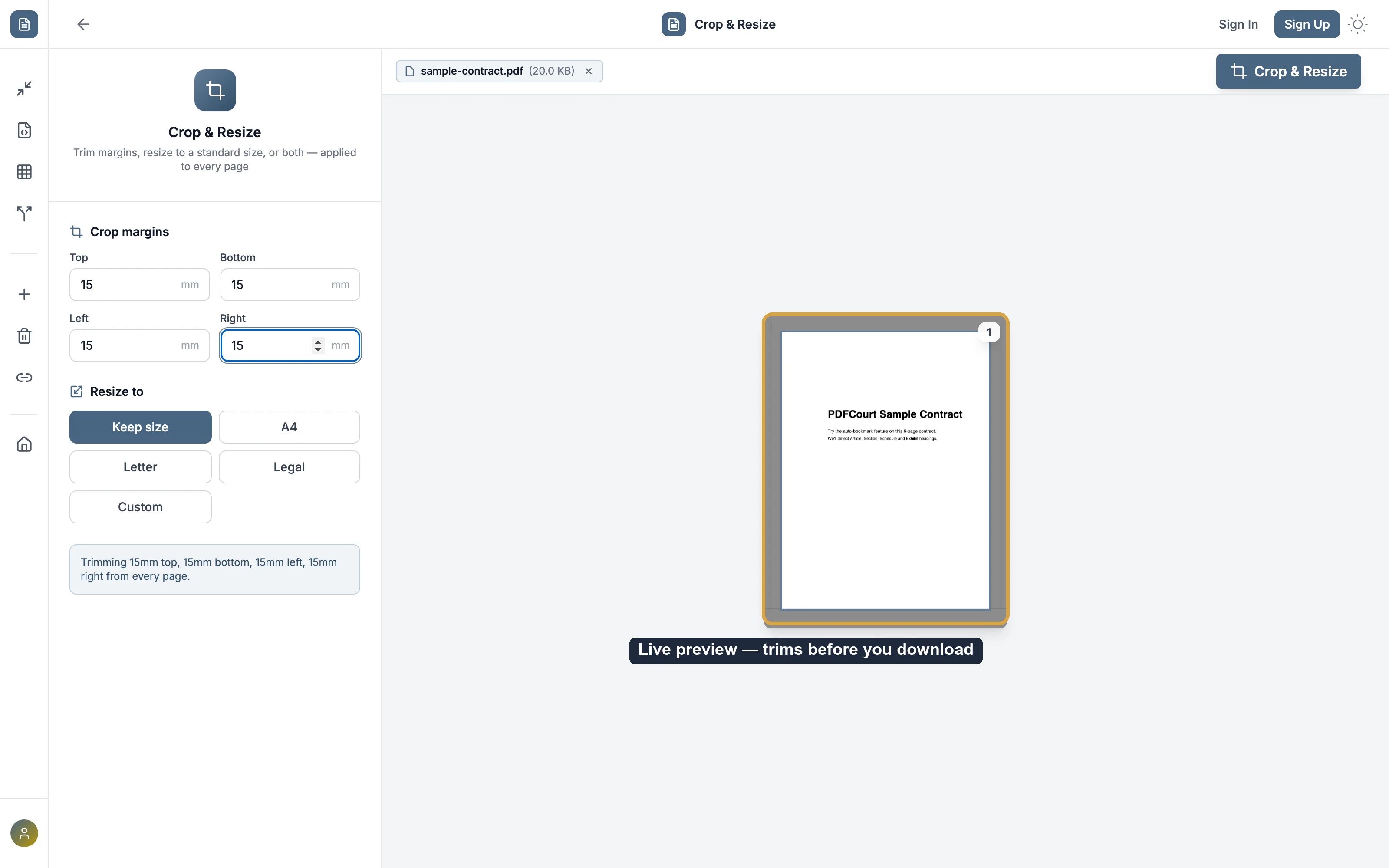
Why it's #1: free, no signup, and shows a live shaded preview of exactly what gets trimmed before you download anything.
Step-by-Step Instructions:
Open PDFCourt and upload your PDF
Visit PDFCourt.com/crop-resize and drop in your file. No download or installation required.
Set a margin to crop, in millimeters
Enter a top/bottom/left/right margin — the same amount trims from every page. The preview updates live with a shaded overlay showing what gets removed.
Optionally resize to a standard size too
Pick A4, Letter, Legal, or a custom size — content scales proportionally and stays centered, so nothing gets stretched. Landscape pages stay landscape automatically.
Download your cropped PDF
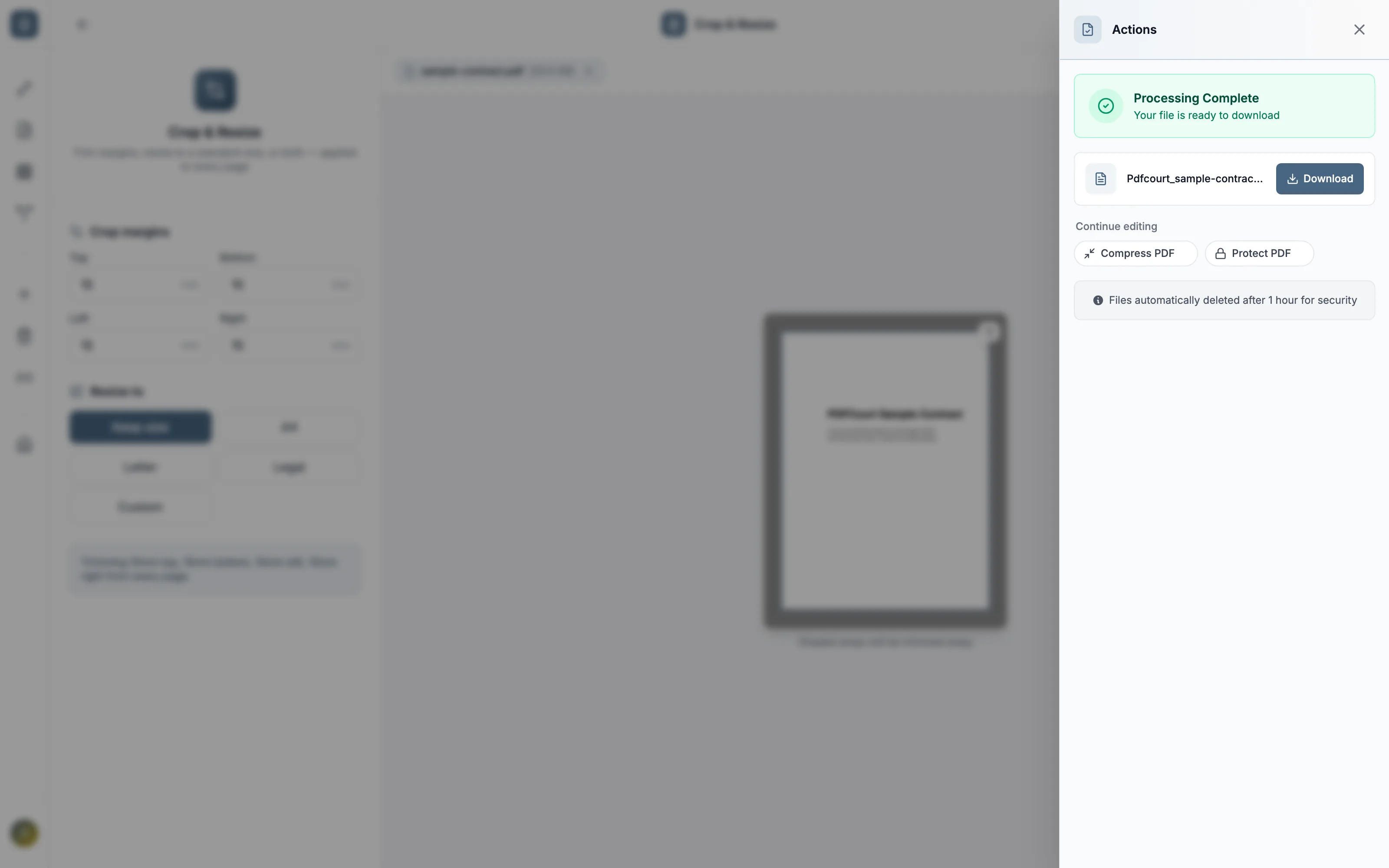
Click "Crop & Resize" and download instantly — applied to every page in one pass.
Method 2: Adobe Acrobat DC (Paid Software)
Cost: $19.99/month or ~$240/year
Best for: organizations already paying for Adobe. Not worth subscribing just to crop a PDF.
Steps:
- Open Adobe Acrobat DC (not the free Reader)
- Go to Tools → Organize Pages → Crop
- Drag the crop box on the page, choose which pages to apply it to
- Click Apply
Note: the free Acrobat Reader cannot crop pages. You need the paid DC version, and dragging a crop box precisely by eye is harder to get consistent across every page than entering an exact millimeter margin.
Crop vs. Resize — which do you need?
Crop
Trims margins from the existing page — the page gets smaller, nothing scales. Use this to remove a scanner's black border or excess white space.
Resize
Scales the whole page onto a new standard size like A4 or Letter — content shrinks or grows proportionally and stays centered. Use this to standardize page size across a document assembled from multiple sources.
You can do both in the same pass — set a crop margin and pick a target size, and PDFCourt trims first, then resizes what's left onto the new page.
Comparison: Which Method Should You Use?
| Method | Cost | Live Preview | Exact Margins | Works On |
|---|---|---|---|---|
| PDFCourt | Free | Yes | Yes (mm) | All devices |
| Adobe Acrobat | $20/mo | Yes | Drag by eye | Win/Mac |
🏆 Winner: PDFCourt
The only free option with an exact millimeter margin and a live shaded preview before you commit.
Frequently Asked Questions
What's the difference between crop and resize?
Crop trims margins from the existing page (e.g. removing a scanner's border) without changing the underlying page size. Resize scales the whole page onto a new size like A4 or Letter. You can do either one, or both in the same pass.
Does resizing distort my content?
No — content is scaled proportionally to fit the new page size and centered, so nothing gets stretched or squashed.
What happens to landscape pages if I resize to A4?
Landscape pages stay landscape — PDFCourt automatically uses the landscape version of whatever size you pick, so orientation is preserved per page.
Can I crop and resize every page at once?
Yes — both crop and resize apply to every page in the document in a single operation.
Do I need Adobe to crop a PDF?
No — PDFCourt crops and resizes directly in your browser, free, with no Adobe Acrobat or other software required.
Conclusion: Best Way to Crop a PDF Free in 2026
Exact millimeter margins
No dragging a box by eye.
100% Free Forever
No hidden costs, no trials.
Crop + Resize together
One pass, applied to every page.
Ready to Crop Your PDF?
Trim margins or resize to a standard size — free.
Crop a PDF Now — It's Free →