How to Extract Pages from a PDF Free (2026 Guide)
Pull a handful of pages out of a long PDF and save them as their own file — free, no signup, and you see exactly which pages you're getting before you download.
Method 1: PDFCourt (100% Free Online)
RECOMMENDED✓ Best for: pulling a specific chapter, exhibit, or section out of a longer document
Why it's #1: you click directly on the pages you want — no typing page numbers or guessing ranges — and see a live-labeled preview of exactly what each resulting file will contain.
Step-by-Step Instructions:
Open PDFCourt and upload your PDF
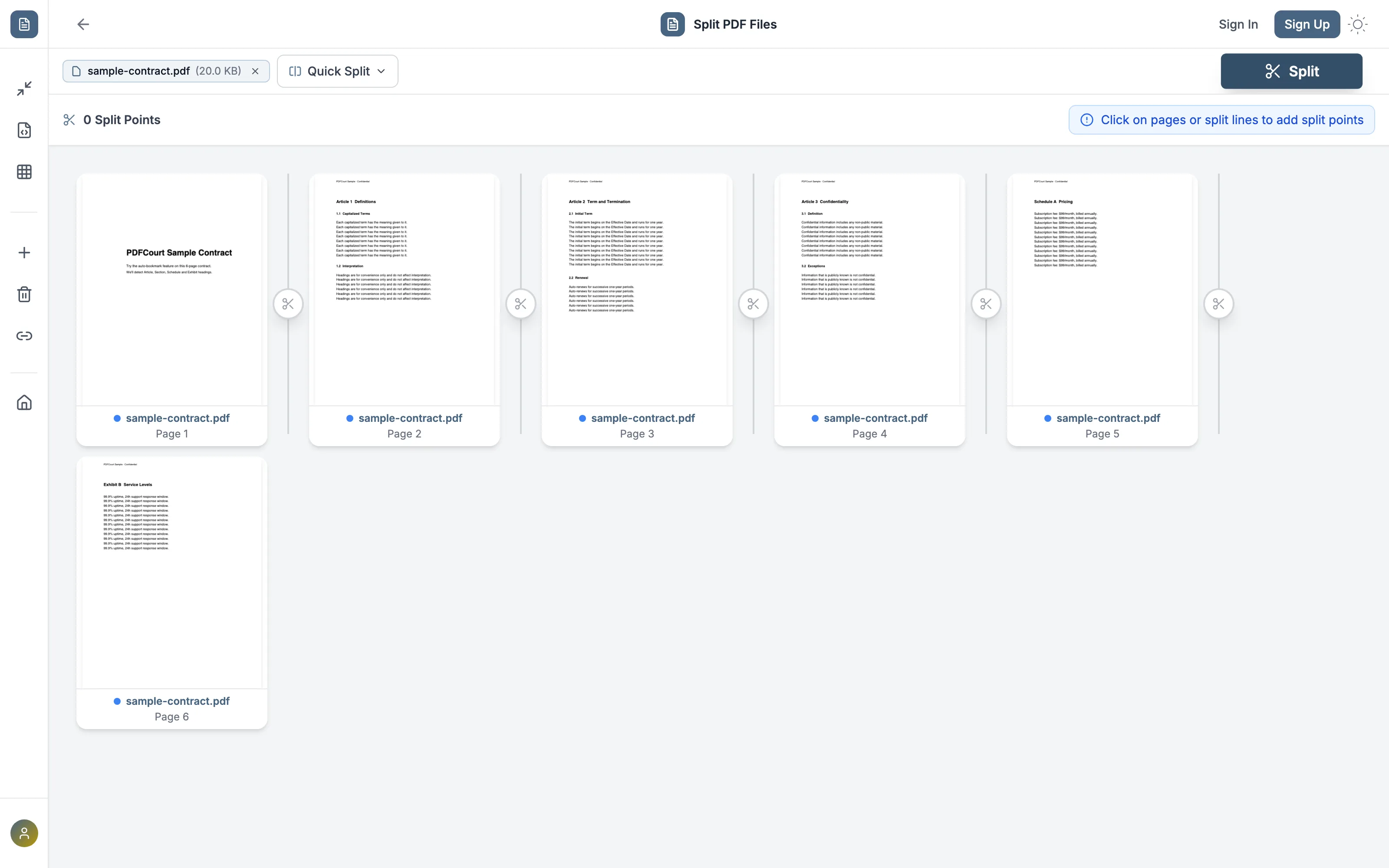
Visit PDFCourt.com/split and drop in your file. Every page renders as a thumbnail with a scissor icon between each pair.
Click the split lines around the pages you want
Click the scissor icon right before your first wanted page, and right after your last wanted page. PDFCourt labels each resulting section with its exact page range — here, clicking around pages 2-4 pulls those three pages into their own labeled "PDF 2".
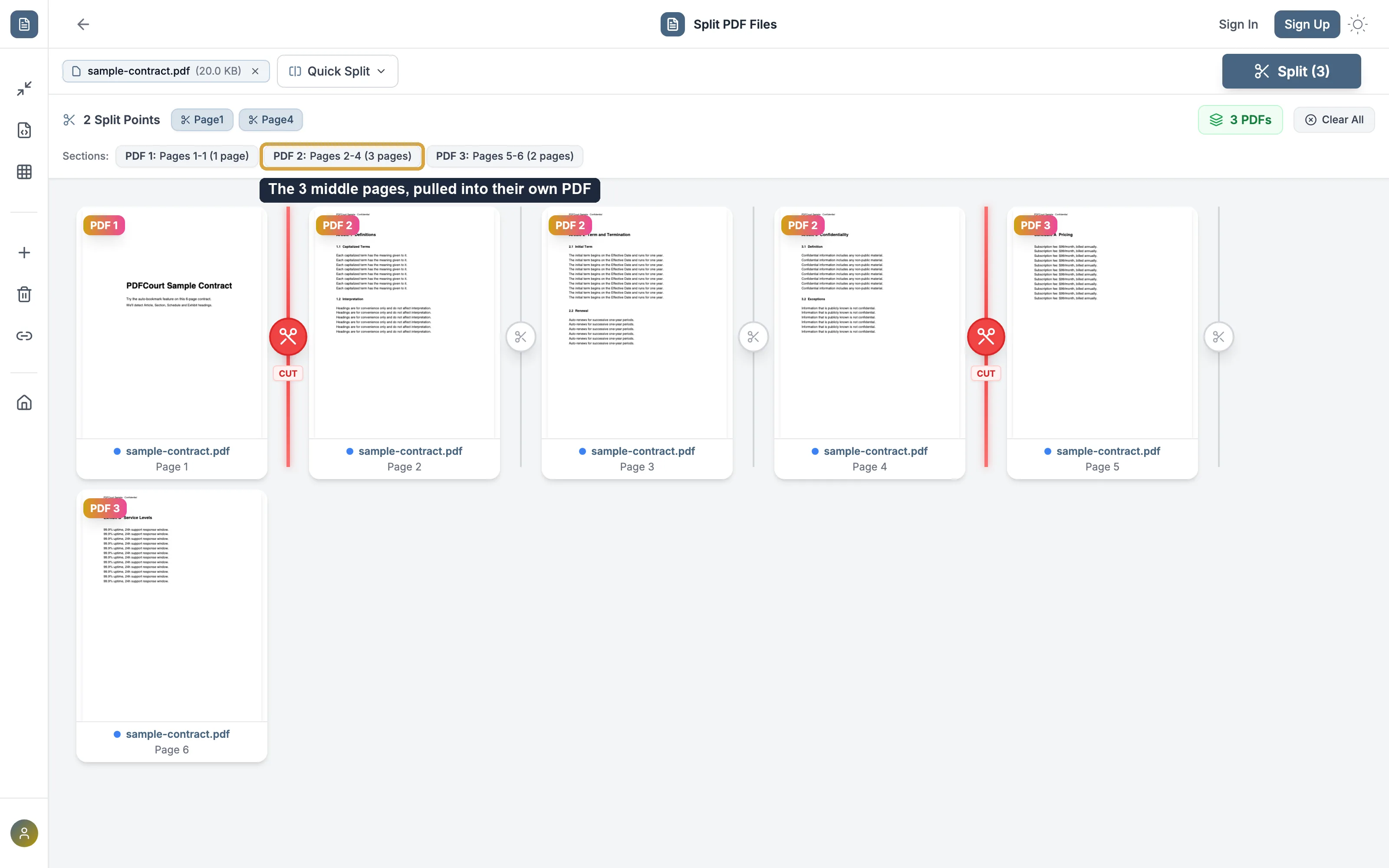
Click Split
PDFCourt generates one PDF per section. If you only need the middle range, just download that one file and ignore the rest.
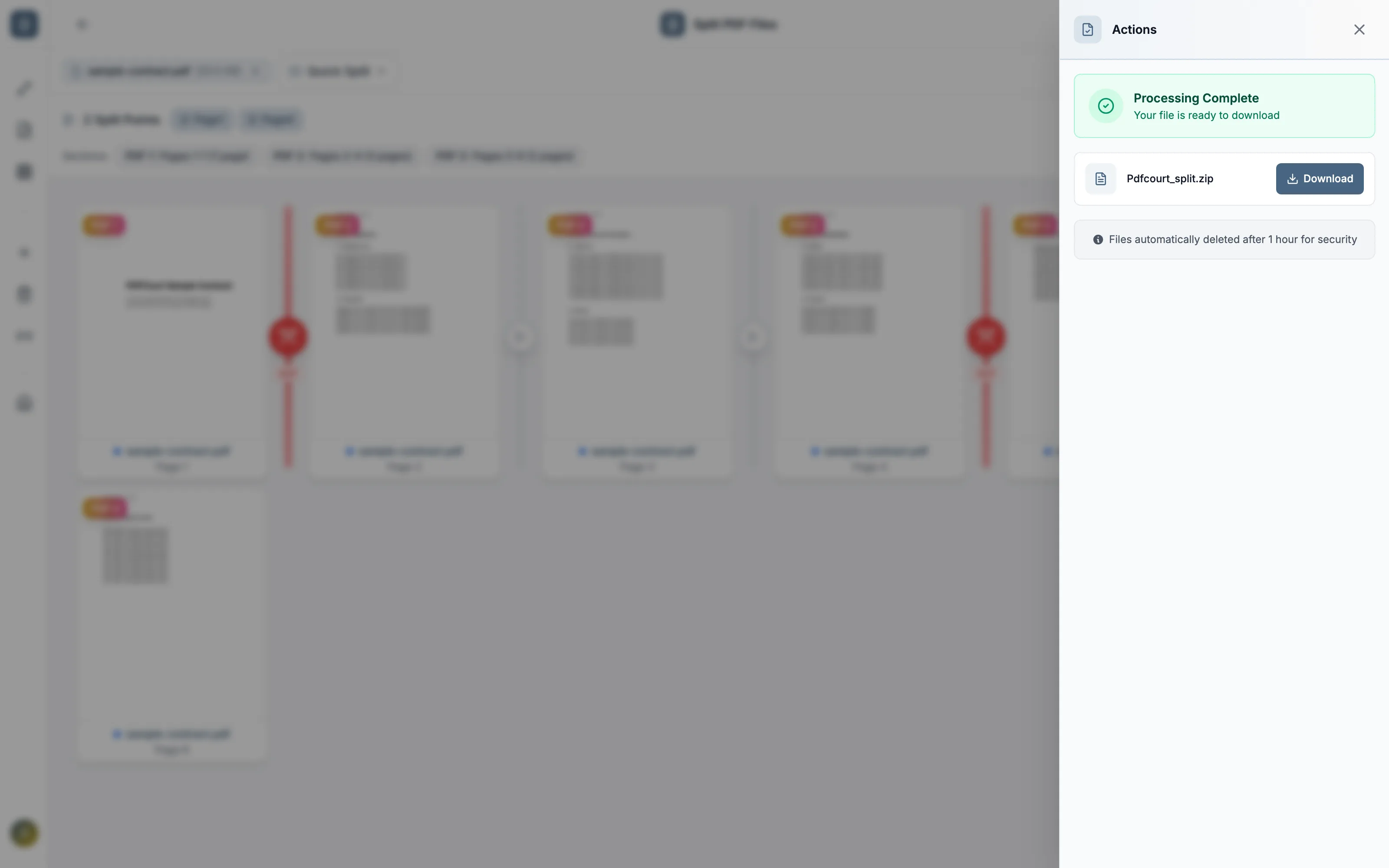
Download your extracted pages
Multiple resulting files download together as a zip, or grab just the one section you need.
Method 2: Adobe Acrobat DC (Paid Software)
Cost: $19.99/month or ~$240/year
Best for: organizations already paying for Adobe. Not worth subscribing just to pull out a few pages.
Steps:
- Open Adobe Acrobat DC (not the free Reader)
- Go to Tools → Organize Pages → Extract
- Type the page range you want to extract
- Click Extract
Note: the free Acrobat Reader cannot extract pages. You need the paid DC version, and typing a page range means counting pages yourself rather than clicking on the thumbnails you can see.
Extracting many small sections at once
If you need to break a long document into many equal pieces rather than pulling out one specific range, PDFCourt's split tool also has a "Quick Split" option: split every N pages, or by an approximate max file size per output — useful for chopping up a scanned book into chapter-sized chunks without clicking every boundary by hand.
Manual clicking (this guide's main method) and Quick Split solve different problems: click manually when you know exactly which pages you want; use Quick Split when you want the whole document broken into evenly-sized pieces.
Comparison: Which Method Should You Use?
| Method | Cost | Click Pages Visually | Multiple Sections at Once | Works On |
|---|---|---|---|---|
| PDFCourt | Free | Yes | Yes | All devices |
| Adobe Acrobat | $20/mo | Type a range | One at a time | Win/Mac |
🏆 Winner: PDFCourt
The only free option where you click the actual pages you want instead of typing and double-checking a page range.
Frequently Asked Questions
How can I extract specific pages from a PDF?
Upload your PDF, click the split lines around the pages you want, and click Split. You'll get separate PDF files instantly — download just the section you need.
Can I extract more than one section in a single pass?
Yes — add as many split points as you need, and PDFCourt produces one clearly labeled PDF per section, all in one operation.
Will extracting pages affect PDF quality?
No — extracted pages keep the original quality of your PDF; nothing is re-rendered or re-compressed.
Can I preview pages before extracting them?
Yes — every page renders as a thumbnail you can view before adding split points, so you know exactly what you're pulling out.
Do I need Adobe to extract PDF pages?
No — PDFCourt extracts pages directly in your browser, free, with no Adobe Acrobat or other software required.
Conclusion: Best Way to Extract PDF Pages Free in 2026
Click, Don't Type
Select pages visually, no counting or guessing ranges.
100% Free Forever
No hidden costs, no trials, no upsells.
Multiple Sections at Once
Every section clearly labeled before you download.
Ready to Pull Out Those Pages?
Try PDFCourt's split tool — free, no signup.
Extract PDF Pages Now — It's Free →